> ## Documentation Index
> Fetch the complete documentation index at: https://docs.dintero.com/llms.txt
> Use this file to discover all available pages before exploring further.
# Add sellers and payout destinations
> Onboard merchants as sellers under Dintero Payout, configure their payout destinations, and run the approval flow that unlocks split payments on your platform.
Once your company is approved for Dintero Payout, you can start the process adding your merchants as sellers. You can choose to
do this part from Backoffice, or through the API.
## Onboarding your merchants from Backoffice
Once again, go to **Settings** → **Sellers**. Here, you will find a new button **Add new Seller**
.
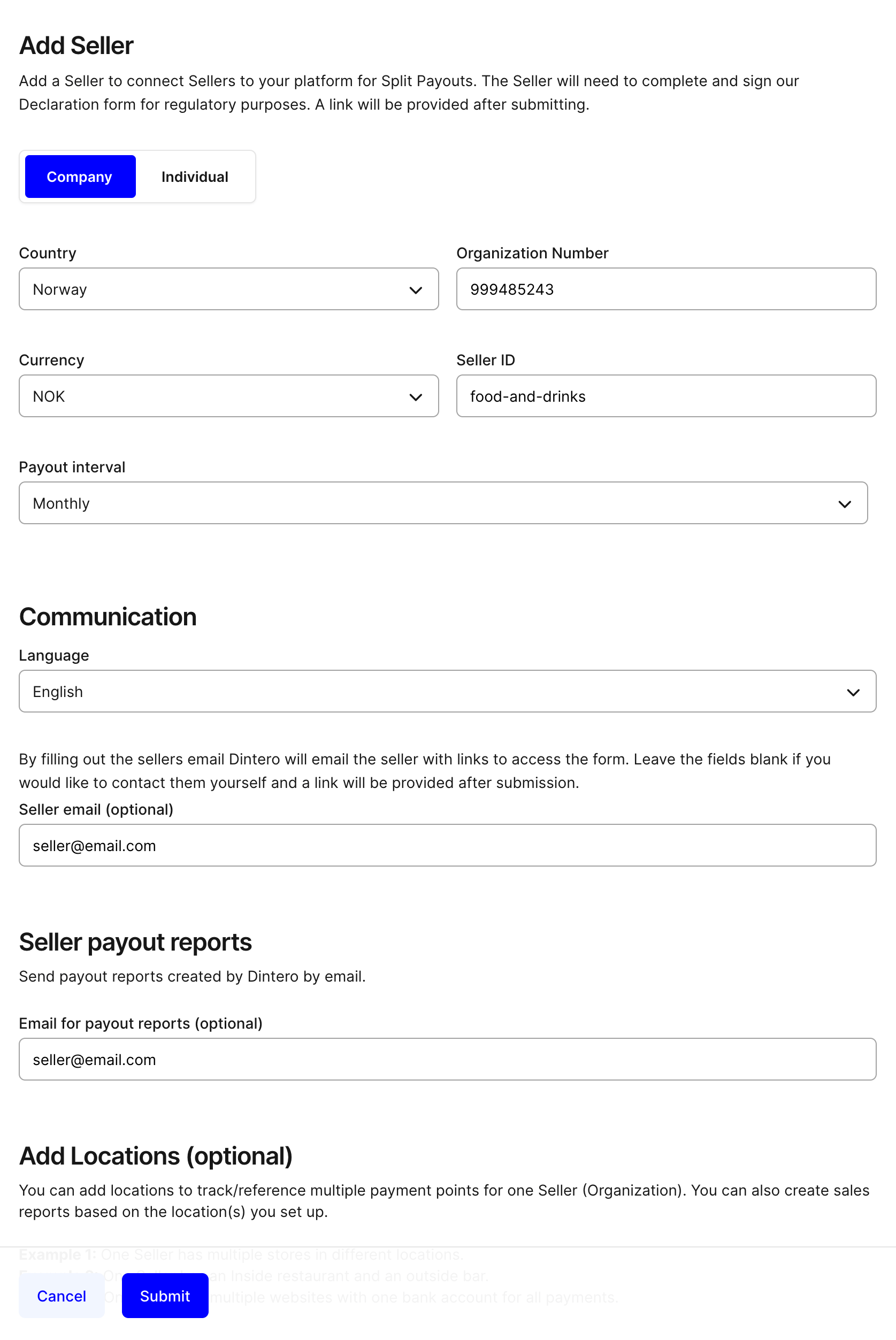
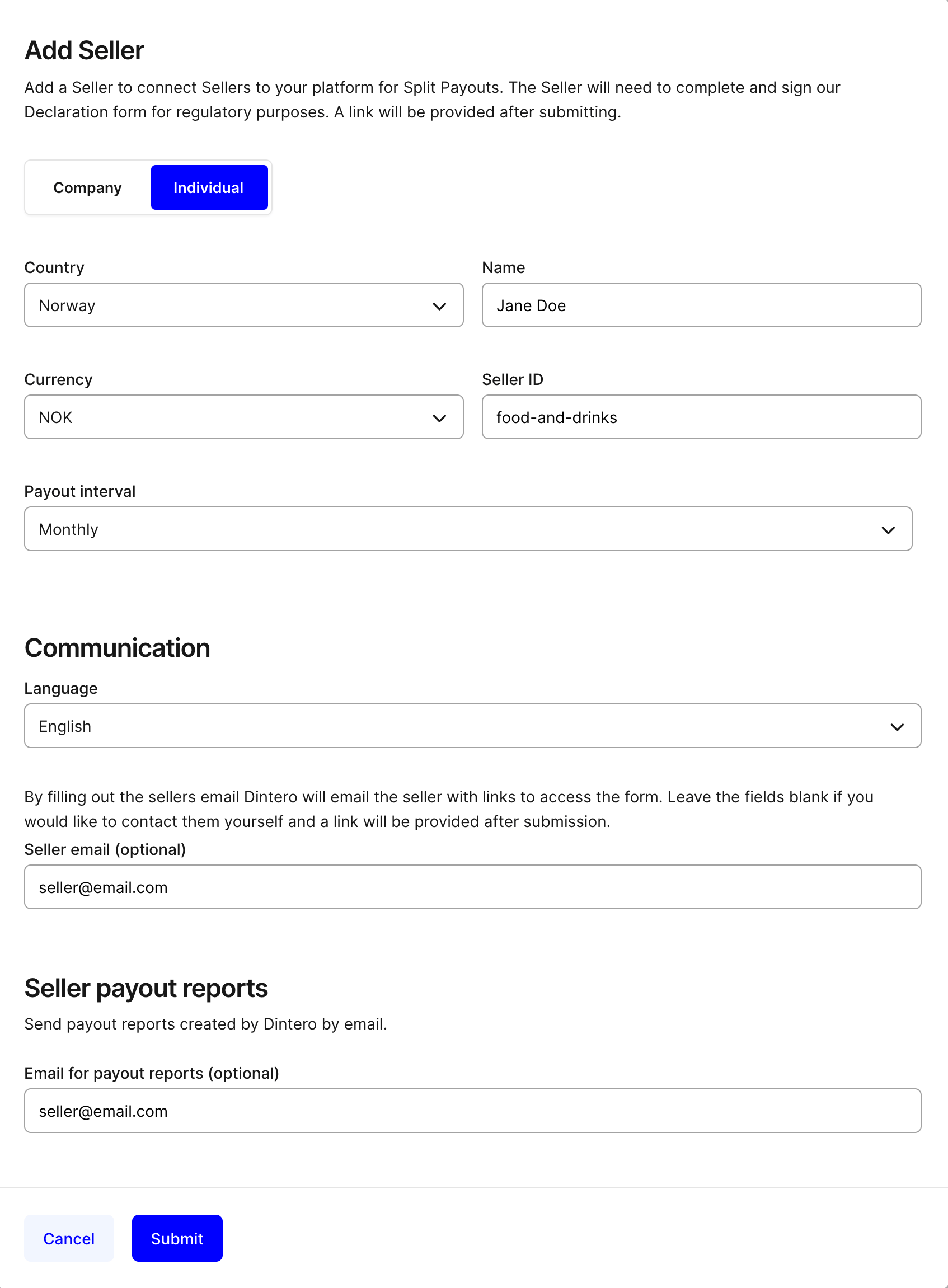
1. Fill out preliminary info about your merchant.
When onboarding a company you will need to provide the country, organization number, currency and seller id.
 When onboarding an individual you will need to provide the country, the name of the individual, currency and seller id.
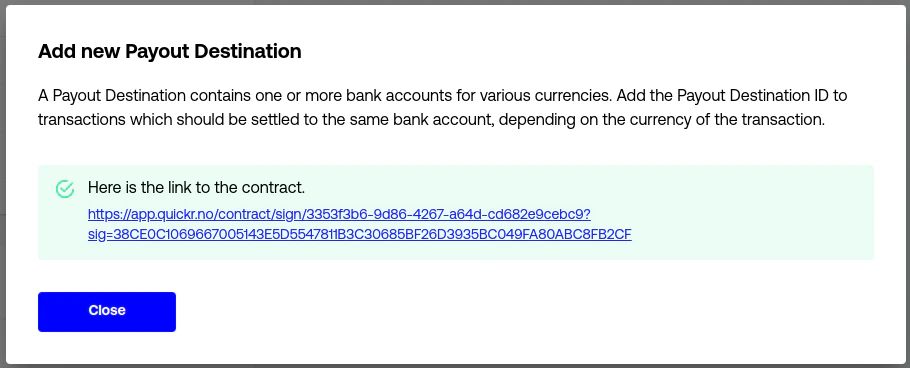
 2. Once filled out, press Continue and you will get a **link** to send to your **merchant**.
 ## Onboarding your merchants through the API
1. Fill out preliminary info about your merchant.
Use [New seller approval](/api-reference/approvals/aid_management_settings_approvals_payout_destinations_post) to fill
out information about the merchant's company.
2. Receive a link to send to your merchant.
The link will be in the response under **links** with `rel=contract_url`.
## Handing over to your merchant
Now, take this link and send it to your merchant. This link will take your merchant to a similar KYC form to yours.
If a `form_submitter` email was provided when creating the approval, the merchant will be notified via email.
### Reminder emails
If the form is not completed (unsigned or undeclared), reminder emails are automatically sent on the following schedule:
1. 24 hours after the initial notification
2. 2 days after
3. 1 week after
4. 2 weeks after
5. 4 weeks after
Once they've submitted their company declaration form and signed the agreement electronically our KYC department will take a look at the data and evaluate your application.
## Seller approval
To know when the Seller is approved, you can create a webhook from **Settings** → **Webhooks**
→ **Add webhook** and choose **approval\_payout\_destination\_update**.
See [webhooks approval\_payout\_destination\_update](/api-reference/example-management-auth-events/example_approval_payout_destination_update_event) for
example of data that will be sent to the webhook
Consider the Seller approved when the seller approval has been updated to `case_status=ACTIVE`.
You can also poll the
endpoint [List seller approvals](/api-reference/approvals/aid_management_settings_approvals_payout_destinations_get)
to see when the destinations are approved.
Once the seller is approved, you can start creating payment sessions with splits.
You can technically create payment sessions with splits before the sellers being approved, but there is no guarantee that they will be approved.
In the case that an unknown or unapproved seller is used, the plattform merchant will have to deal with the matter manually.
## Onboarding your merchants through the API
1. Fill out preliminary info about your merchant.
Use [New seller approval](/api-reference/approvals/aid_management_settings_approvals_payout_destinations_post) to fill
out information about the merchant's company.
2. Receive a link to send to your merchant.
The link will be in the response under **links** with `rel=contract_url`.
## Handing over to your merchant
Now, take this link and send it to your merchant. This link will take your merchant to a similar KYC form to yours.
If a `form_submitter` email was provided when creating the approval, the merchant will be notified via email.
### Reminder emails
If the form is not completed (unsigned or undeclared), reminder emails are automatically sent on the following schedule:
1. 24 hours after the initial notification
2. 2 days after
3. 1 week after
4. 2 weeks after
5. 4 weeks after
Once they've submitted their company declaration form and signed the agreement electronically our KYC department will take a look at the data and evaluate your application.
## Seller approval
To know when the Seller is approved, you can create a webhook from **Settings** → **Webhooks**
→ **Add webhook** and choose **approval\_payout\_destination\_update**.
See [webhooks approval\_payout\_destination\_update](/api-reference/example-management-auth-events/example_approval_payout_destination_update_event) for
example of data that will be sent to the webhook
Consider the Seller approved when the seller approval has been updated to `case_status=ACTIVE`.
You can also poll the
endpoint [List seller approvals](/api-reference/approvals/aid_management_settings_approvals_payout_destinations_get)
to see when the destinations are approved.
Once the seller is approved, you can start creating payment sessions with splits.
You can technically create payment sessions with splits before the sellers being approved, but there is no guarantee that they will be approved.
In the case that an unknown or unapproved seller is used, the plattform merchant will have to deal with the matter manually.