> ## Documentation Index
> Fetch the complete documentation index at: https://docs.dintero.com/llms.txt
> Use this file to discover all available pages before exploring further.
# In-person payment test data
> Test in-person (terminal) payments in the Dintero sandbox using the Visa CDET Android app to simulate contactless cards.
To test an in-person payment you need a Dintero payment terminal in the sandbox and something to tap against it. Instead of a stack of physical test cards, use the [Visa CDET](https://play.google.com/store/apps/details?id=com.visa.app.cdet) (Contactless Device Evaluation Toolkit) Android app — it turns your phone into a contactless test card and lets you exercise different card profiles and edge cases.
CDET is a Visa-published tool intended for testing only. Use it against terminals that are configured for the sandbox environment, never against production terminals.
## What you need
* An Android device with NFC.
* A Dintero payment terminal registered to a store in the sandbox. See [terminal onboarding](/docs/checkout/in-person/terminal-onboarding).
* The ability to change the phone's default wallet / contactless payment app.
## Install the Visa CDET app
Install **Visa CDET Application** from the Google Play Store:
`com.visa.app.cdet`
## Set CDET as the default wallet app
For the terminal to talk to CDET instead of Google Wallet (or any other wallet), you need to make CDET the default contactless payment app on the phone.
On your Android device, open **Settings** and search for *Default wallet app* (sometimes under **Connected devices** > **NFC** > **Contactless payments**). The exact path varies by manufacturer.
Choose **CDET 1.22** from the list of installed wallet apps.
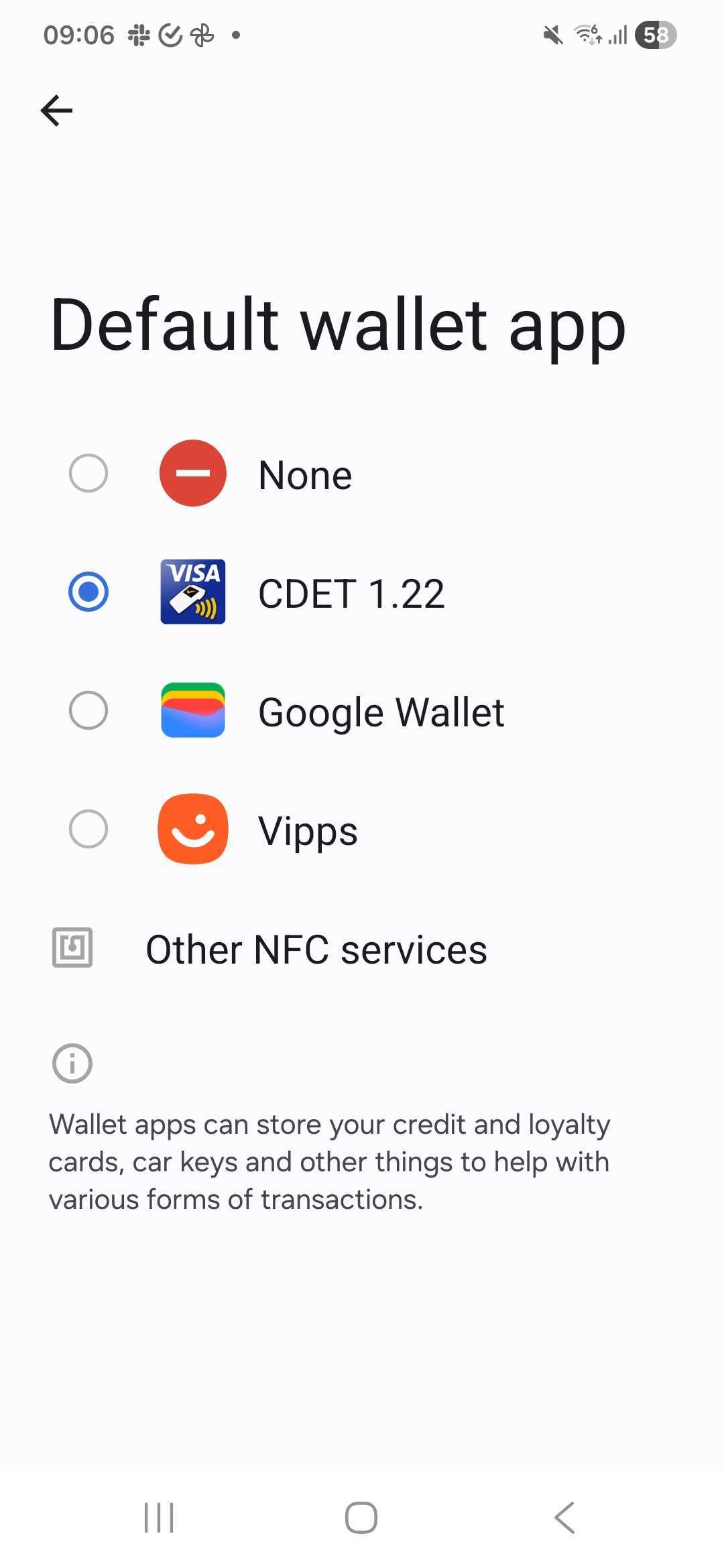 Remember to switch the default back to your normal wallet app when you're done testing, otherwise real contactless payments from the phone will stop working.
## Test cards
Open the **Visa CDET Application**. You'll see a list of test cards, each modelling a specific card profile or edge case (baseline VCPS compliance, unusual PDOL requests, multi-application cards, missing cardholder name, and so on).
Remember to switch the default back to your normal wallet app when you're done testing, otherwise real contactless payments from the phone will stop working.
## Test cards
Open the **Visa CDET Application**. You'll see a list of test cards, each modelling a specific card profile or edge case (baseline VCPS compliance, unusual PDOL requests, multi-application cards, missing cardholder name, and so on).
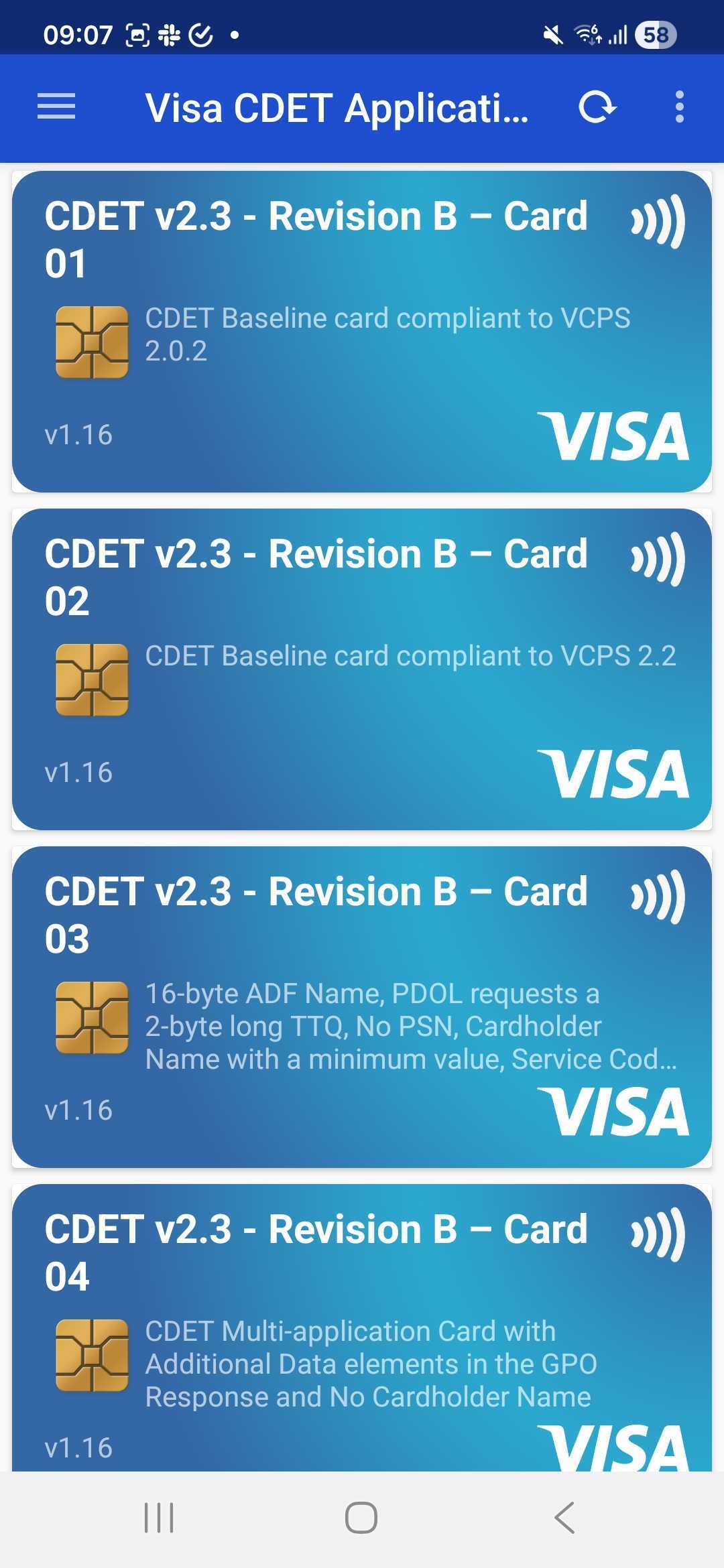 Select the card that matches the scenario you want to test, then tap the phone against the terminal when it prompts for payment.
| Card | Typical use |
| ----------------------------------------------------------------- | --------------------------------------------------------------------------------------------- |
| **Card 01** — CDET Baseline (VCPS 2.0.2) | Happy-path contactless payment. |
| **Card 02** — CDET Baseline (VCPS 2.2) | Happy-path contactless payment on a newer VCPS version. |
| **Card 03** — 16-byte ADF, 2-byte TTQ, min-length cardholder name | Exercise the terminal's handling of unusual PDOL / TTQ / cardholder name values. |
| **Card 04** — Multi-application card, no cardholder name | Verify behaviour when the card exposes additional applications and omits the cardholder name. |
Refer to the card description shown in the app for the exact behaviour of each entry — the list is maintained by Visa and updated with each CDET release.
## Run a sandbox payment
Create a session that targets your sandbox terminal. See [creating a terminal session](/docs/checkout/in-person/creating-terminal-session).
When the terminal prompts *Tap, insert, or swipe*, hold the phone (with CDET set as the default wallet and the desired card selected) against the terminal's contactless zone.
The terminal completes the flow as if a real Visa card were tapped. The resulting transaction shows up in Backoffice and via the standard Checkout API, so you can verify authorization, capture, and callback handling end-to-end.
## Related
Register a store and link a terminal before you start testing.
Build the session payload that drives the terminal.
Select the card that matches the scenario you want to test, then tap the phone against the terminal when it prompts for payment.
| Card | Typical use |
| ----------------------------------------------------------------- | --------------------------------------------------------------------------------------------- |
| **Card 01** — CDET Baseline (VCPS 2.0.2) | Happy-path contactless payment. |
| **Card 02** — CDET Baseline (VCPS 2.2) | Happy-path contactless payment on a newer VCPS version. |
| **Card 03** — 16-byte ADF, 2-byte TTQ, min-length cardholder name | Exercise the terminal's handling of unusual PDOL / TTQ / cardholder name values. |
| **Card 04** — Multi-application card, no cardholder name | Verify behaviour when the card exposes additional applications and omits the cardholder name. |
Refer to the card description shown in the app for the exact behaviour of each entry — the list is maintained by Visa and updated with each CDET release.
## Run a sandbox payment
Create a session that targets your sandbox terminal. See [creating a terminal session](/docs/checkout/in-person/creating-terminal-session).
When the terminal prompts *Tap, insert, or swipe*, hold the phone (with CDET set as the default wallet and the desired card selected) against the terminal's contactless zone.
The terminal completes the flow as if a real Visa card were tapped. The resulting transaction shows up in Backoffice and via the standard Checkout API, so you can verify authorization, capture, and callback handling end-to-end.
## Related
Register a store and link a terminal before you start testing.
Build the session payload that drives the terminal.