> ## Documentation Index
> Fetch the complete documentation index at: https://docs.dintero.com/llms.txt
> Use this file to discover all available pages before exploring further.

<AgentInstructions>

## Submitting Feedback

If you encounter incorrect, outdated, or confusing documentation on this page, submit feedback:

POST https://docs.dintero.com/feedback

```json
{
  "path": "/docs/integrations/checkout-prereq",
  "feedback": "Description of the issue"
}
```

Only submit feedback when you have something specific and actionable to report.

</AgentInstructions>

# API key and payment profile setup

> Prepare your Dintero account for an integration — apply for payment methods, create a payment profile, and generate the API key your plugin or app will use.

## Before you start

1. Create an account at [dintero.com](https://dintero.com)
2. Apply for payment methods in Dintero Backoffice
   * Login to [Dintero Backoffice]
   * Go to `Settings` → `Payment Connections`
   * Apply for your preferred payment methods (it will take 1-3 days for you get approval).

## Create API Keys

1. Login to [Dintero Backoffice]

2. Go to `Settings` → `API Keys`→ `Add new api keys`

   <img src="https://mintcdn.com/dintero-c3a7bfec/TiCvqt4VXcXnNQNe/docs/assets/backoffice/new_api_client.png?fit=max&auto=format&n=TiCvqt4VXcXnNQNe&q=85&s=8a3da4b72f9de020226f67665e2f4ea9" alt="new api keys" width="2732" height="2047" data-path="docs/assets/backoffice/new_api_client.png" />

3. Click on `Checkout Client`

   <img src="https://mintcdn.com/dintero-c3a7bfec/TiCvqt4VXcXnNQNe/docs/assets/backoffice/checkout_client.png?fit=max&auto=format&n=TiCvqt4VXcXnNQNe&q=85&s=a734c1fcc4277e4dd8a04c0e31bb5a00" alt="checkout client" width="2732" height="2048" data-path="docs/assets/backoffice/checkout_client.png" />

4. Enter `Name` for client and click on `Create API Client`

   <img src="https://mintcdn.com/dintero-c3a7bfec/TiCvqt4VXcXnNQNe/docs/assets/backoffice/create_checkout_api_client.png?fit=max&auto=format&n=TiCvqt4VXcXnNQNe&q=85&s=681a5361d7a099fc6c563e64052611bf" alt="newclient" width="2732" height="2048" data-path="docs/assets/backoffice/create_checkout_api_client.png" />

5. Save your credentials in a secret place.

   <img src="https://mintcdn.com/dintero-c3a7bfec/TiCvqt4VXcXnNQNe/docs/assets/backoffice/credentials.png?fit=max&auto=format&n=TiCvqt4VXcXnNQNe&q=85&s=c77a7ab9d9f419a90b8fc92f59fd6a46" alt="credentials" width="2732" height="2047" data-path="docs/assets/backoffice/credentials.png" />

## Create Payment Profile

1. Login to [Dintero Backoffice]

2. Go to `Settings` → `Payment Profiles`→ `Create new Payment profile`

   <img src="https://mintcdn.com/dintero-c3a7bfec/TiCvqt4VXcXnNQNe/docs/assets/backoffice/new_payment_profile.png?fit=max&auto=format&n=TiCvqt4VXcXnNQNe&q=85&s=eaea9a5268a13d75a12d5ed1f7581230" alt="new payment profile" width="2732" height="2047" data-path="docs/assets/backoffice/new_payment_profile.png" />

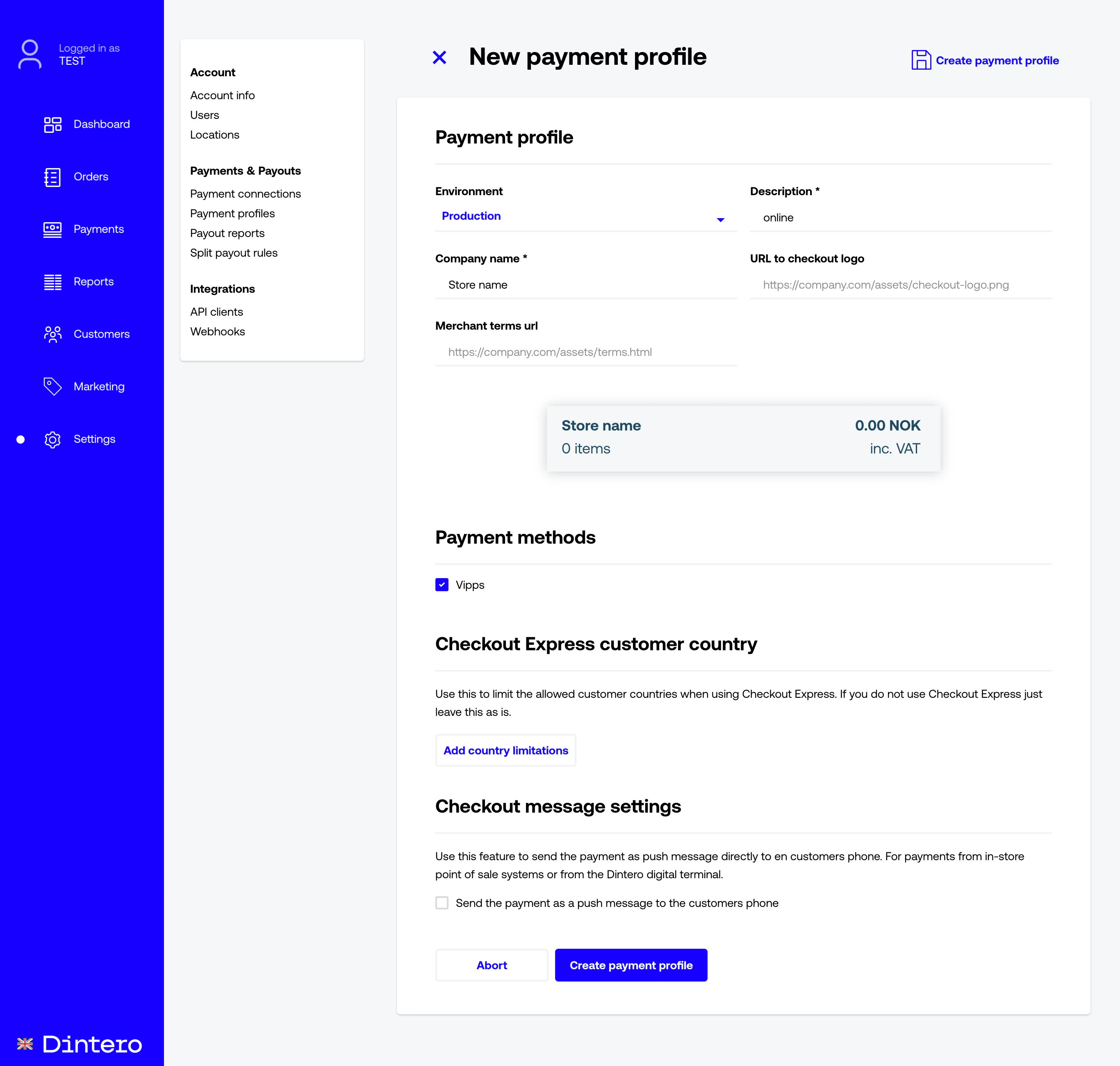
3. Click on `create_payment_profile`

   <img src="https://mintcdn.com/dintero-c3a7bfec/TiCvqt4VXcXnNQNe/docs/assets/backoffice/create_payment_profile.png?fit=max&auto=format&n=TiCvqt4VXcXnNQNe&q=85&s=4c43761cc662fc3f11da6c9e0a2f13f0" alt="create payment profile" width="2732" height="2600" data-path="docs/assets/backoffice/create_payment_profile.png" />

4. Payment profile created with new id.

   <img src="https://mintcdn.com/dintero-c3a7bfec/TiCvqt4VXcXnNQNe/docs/assets/backoffice/payment_profile_id.png?fit=max&auto=format&n=TiCvqt4VXcXnNQNe&q=85&s=606816c152c897cc18a1cb1b771c32ab" alt="payment profile" width="2732" height="2472" data-path="docs/assets/backoffice/payment_profile_id.png" />

[Dintero Backoffice]: https://backoffice.dintero.com