> ## Documentation Index
> Fetch the complete documentation index at: https://docs.dintero.com/llms.txt
> Use this file to discover all available pages before exploring further.
# Shopify
> Install Dintero payment apps in your Shopify store.
Shopify is a popular e-commerce platform for creating an online store and selling products. Dintero offers several Shopify apps that let you accept payments through cards, Klarna, Vipps, and Swish.
## Prerequisites
* A Shopify store.
* A Dintero account and payment profile. See [API client setup](/docs/checkout/checkout-client).
## Recommended setup
For most merchants, we recommend this setup:
1. Install the **Dintero Companion** app.
2. Install one or more payment method apps:
* Cards
* Klarna
* Vipps (Norway)
* Swish (Sweden)
Install the Companion app alongside your payment method apps, especially if you use Klarna, Walley, or Billie. These methods rely on detailed order line information for authorization, capture, and refunds.
## Available apps
### Dintero Companion
The Companion app adds order line support for all other Dintero apps. It ensures that item details such as quantity, product name, VAT, and discounts pass correctly to Dintero.
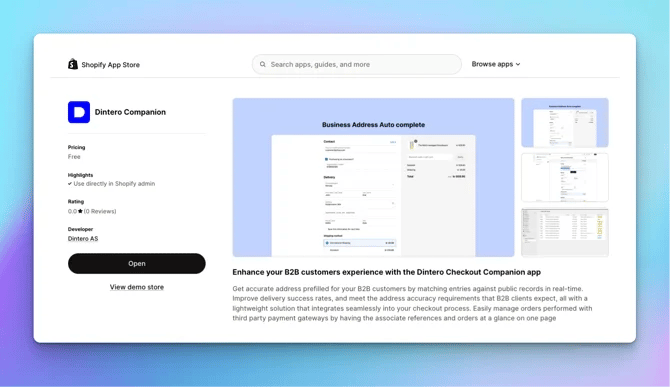 Adds order line support for all Dintero payment apps.
### Payment method apps
Install a separate app for each payment method you want to offer.
Accept Visa and Mastercard payments through Dintero.
Offer Klarna Pay Now, Pay Later, and Financing in your checkout.
Add Vipps mobile payments. Available for Norwegian customers only.
Add Swish mobile payments. Available for Swedish customers only.
Add MobilePay mobile payments. Available for Danish and Finnish customers only.
Offer Billie buy now, pay later for business (B2B) customers.
### Dintero Checkout unified app (not recommended)
This app combines all payment methods into a single option at checkout. When customers select it, they are redirected to Dintero's secure payment page at `checkout.dintero.com`.
We do not recommend the unified app for most merchants. Use a separate payment method app instead, unless you need one of the cases below.
Use the unified app only if you need to:
* Display a custom company logo or friendly name during payment.
* Offer a single specific payment provider, such as Walley or Billie for B2B payments.
If you use the unified app for a single payment provider:
In [Dintero Backoffice](https://backoffice.dintero.com), open your **Payment profile** and disable all other payment methods.
Open the app settings in Shopify and make sure only the desired method is active.
## Common mistakes
Review these common Shopify mistakes to avoid issues with refunds, captures, and disputes.
An order with status **Authorized** or **Processing** has not been captured yet. To release the customer's funds, cancel the order rather than issuing a refund.
Dintero does not auto-capture payments by default, in line with Nordic consumer protection laws. If you sell digital products and need auto-capture, contact Dintero support.
Always capture and refund through Shopify. Performing these actions in Dintero Backoffice will not sync the changes back to Shopify, your order management system, or your warehouse system.
You have 72 hours to respond to a Klarna dispute. Sign in to [portal.klarna.com](https://portal.klarna.com) with your Dintero account email address. Missing the deadline means automatically losing the case and the funds.
See [handling disputes in the Klarna portal](/docs/integrations/support/klarna-disputes) for full instructions.
Adds order line support for all Dintero payment apps.
### Payment method apps
Install a separate app for each payment method you want to offer.
Accept Visa and Mastercard payments through Dintero.
Offer Klarna Pay Now, Pay Later, and Financing in your checkout.
Add Vipps mobile payments. Available for Norwegian customers only.
Add Swish mobile payments. Available for Swedish customers only.
Add MobilePay mobile payments. Available for Danish and Finnish customers only.
Offer Billie buy now, pay later for business (B2B) customers.
### Dintero Checkout unified app (not recommended)
This app combines all payment methods into a single option at checkout. When customers select it, they are redirected to Dintero's secure payment page at `checkout.dintero.com`.
We do not recommend the unified app for most merchants. Use a separate payment method app instead, unless you need one of the cases below.
Use the unified app only if you need to:
* Display a custom company logo or friendly name during payment.
* Offer a single specific payment provider, such as Walley or Billie for B2B payments.
If you use the unified app for a single payment provider:
In [Dintero Backoffice](https://backoffice.dintero.com), open your **Payment profile** and disable all other payment methods.
Open the app settings in Shopify and make sure only the desired method is active.
## Common mistakes
Review these common Shopify mistakes to avoid issues with refunds, captures, and disputes.
An order with status **Authorized** or **Processing** has not been captured yet. To release the customer's funds, cancel the order rather than issuing a refund.
Dintero does not auto-capture payments by default, in line with Nordic consumer protection laws. If you sell digital products and need auto-capture, contact Dintero support.
Always capture and refund through Shopify. Performing these actions in Dintero Backoffice will not sync the changes back to Shopify, your order management system, or your warehouse system.
You have 72 hours to respond to a Klarna dispute. Sign in to [portal.klarna.com](https://portal.klarna.com) with your Dintero account email address. Missing the deadline means automatically losing the case and the funds.
See [handling disputes in the Klarna portal](/docs/integrations/support/klarna-disputes) for full instructions.