> ## Documentation Index
> Fetch the complete documentation index at: https://docs.dintero.com/llms.txt
> Use this file to discover all available pages before exploring further.
# Capture orders
> How to capture payment for a full or partial order, in WooCommerce or directly in Dintero Backoffice.
Capturing an order charges the customer and triggers payout. You can capture the full order at once or in parts as items ship.
If you use WooCommerce, always capture through WooCommerce rather than Dintero Backoffice directly. Capturing in Backoffice bypasses WooCommerce and will not update the order status, inventory, or connected logistics systems.
## Full capture
### In WooCommerce
Capture the full order by setting its status to **Completed**.
Go to **WooCommerce** > **Orders** and open the order. The status should be **Processing** or **On hold**, meaning the payment is authorized and ready to capture.
Change the order status to **Completed** and save.
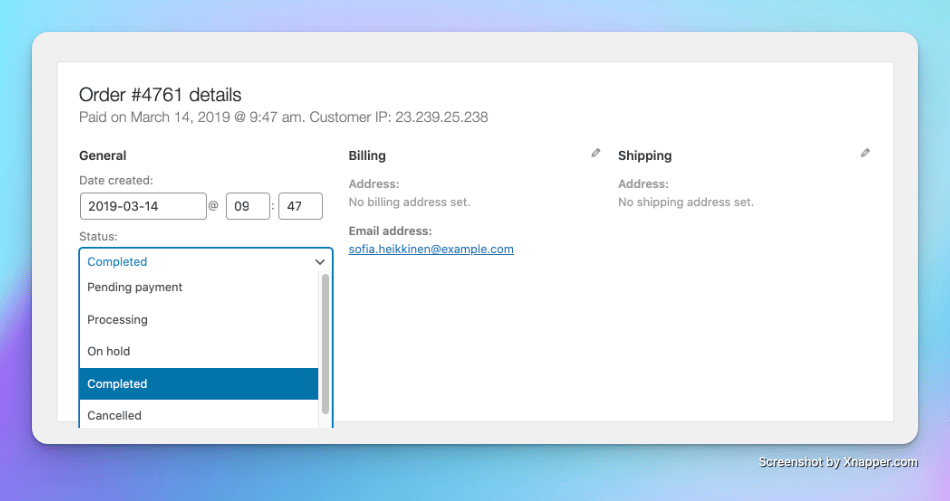 WooCommerce sends a full capture request to Dintero. The customer is charged and the order is marked complete.
### In Dintero Backoffice (backup)
Use this only if you cannot complete the order through WooCommerce. Update the WooCommerce order status manually afterward.
In [Dintero Backoffice](https://backoffice.dintero.com), go to **Payments** and search for the order number.
WooCommerce sends a full capture request to Dintero. The customer is charged and the order is marked complete.
### In Dintero Backoffice (backup)
Use this only if you cannot complete the order through WooCommerce. Update the WooCommerce order status manually afterward.
In [Dintero Backoffice](https://backoffice.dintero.com), go to **Payments** and search for the order number.
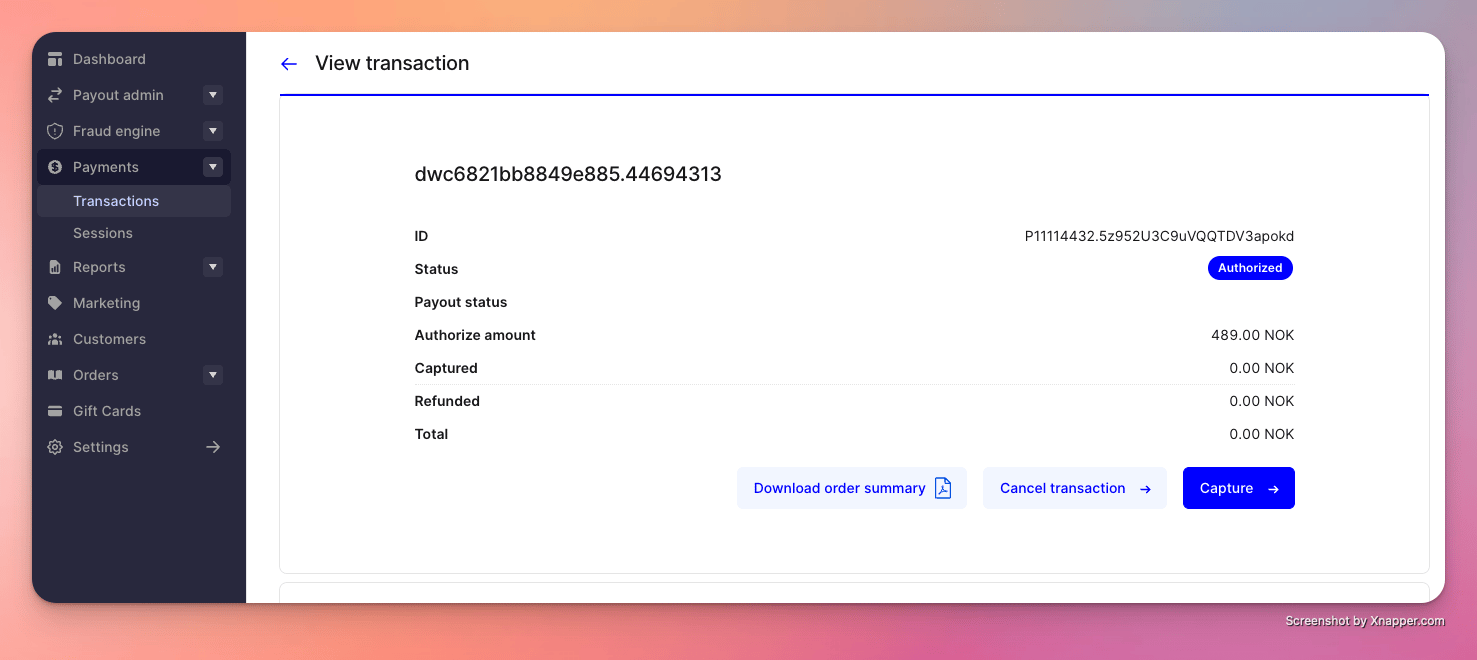 Click **Capture**, verify the amount, and confirm.
Open the order in WooCommerce and manually set the status to **Completed**.
## Partial capture
Partial capture lets you charge the customer for part of an order now and capture the rest later. This is useful when items ship at different times.
The order moves to status `partially_captured` after the first capture. The remaining authorized amount stays reserved at the customer's bank. See [Duration of authorizations](/docs/integrations/support/duration-of-authorizations) for how long the reservation is held.
### In WooCommerce
This process removes product lines from the WooCommerce order. Do this only if inventory is tracked separately, or after accounting for the removed lines.
Open the order and change the status to **Pending payment**. This pauses automatic processing.
Delete the product lines you are not capturing in this shipment. The order total updates to reflect only the remaining lines.
Change the status to **Completed** and save. WooCommerce triggers a capture through Dintero for the remaining lines only.
### Capture the remaining balance in Backoffice
When the rest of the order is ready to ship, capture the reserved amount.
In [Dintero Backoffice](https://backoffice.dintero.com), go to **Payments** and open the order.
Click **Capture**, select the product lines to charge, adjust amounts if needed, and confirm.
## Cancel remaining balance
If you will not ship the rest of the order, release the reserved amount. It disappears automatically from the customer's bank after a short period. To release it immediately:
1. In Backoffice, go to **Payments** and open the order.
2. Click **Cancel** and confirm.
Cancelling the remaining amount is not supported for card payments via Worldline (Gateway), including Vipps, Swish, Apple Pay, Google Pay, and MobilePay. For these methods the reservation expires on its own. See [Duration of authorizations](/docs/integrations/support/duration-of-authorizations) for expiry timelines.
Click **Capture**, verify the amount, and confirm.
Open the order in WooCommerce and manually set the status to **Completed**.
## Partial capture
Partial capture lets you charge the customer for part of an order now and capture the rest later. This is useful when items ship at different times.
The order moves to status `partially_captured` after the first capture. The remaining authorized amount stays reserved at the customer's bank. See [Duration of authorizations](/docs/integrations/support/duration-of-authorizations) for how long the reservation is held.
### In WooCommerce
This process removes product lines from the WooCommerce order. Do this only if inventory is tracked separately, or after accounting for the removed lines.
Open the order and change the status to **Pending payment**. This pauses automatic processing.
Delete the product lines you are not capturing in this shipment. The order total updates to reflect only the remaining lines.
Change the status to **Completed** and save. WooCommerce triggers a capture through Dintero for the remaining lines only.
### Capture the remaining balance in Backoffice
When the rest of the order is ready to ship, capture the reserved amount.
In [Dintero Backoffice](https://backoffice.dintero.com), go to **Payments** and open the order.
Click **Capture**, select the product lines to charge, adjust amounts if needed, and confirm.
## Cancel remaining balance
If you will not ship the rest of the order, release the reserved amount. It disappears automatically from the customer's bank after a short period. To release it immediately:
1. In Backoffice, go to **Payments** and open the order.
2. Click **Cancel** and confirm.
Cancelling the remaining amount is not supported for card payments via Worldline (Gateway), including Vipps, Swish, Apple Pay, Google Pay, and MobilePay. For these methods the reservation expires on its own. See [Duration of authorizations](/docs/integrations/support/duration-of-authorizations) for expiry timelines.