> ## Documentation Index
> Fetch the complete documentation index at: https://docs.dintero.com/llms.txt
> Use this file to discover all available pages before exploring further.
# Refunds
> How to refund orders in WooCommerce and Dintero Backoffice.
You can refund orders directly through the Dintero plugin in WooCommerce. Backoffice provides a backup method if the plugin is unavailable.
Only **captured** orders can be refunded. If an order has status **Processing** in WooCommerce (authorized but not yet captured), cancel it instead of refunding. Cancelling before capture avoids the transaction fee; refunding after capture does not.
Refunds typically reach the customer within 1–3 business days.
## Refund in WooCommerce
Go to **WooCommerce** > **Orders**, open the order, and click the **Refund** button at the bottom of the order.
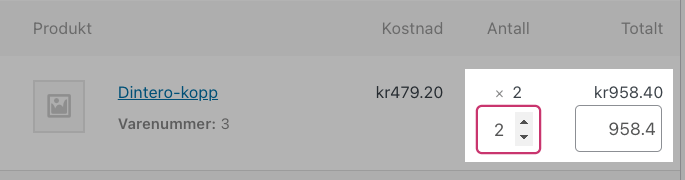
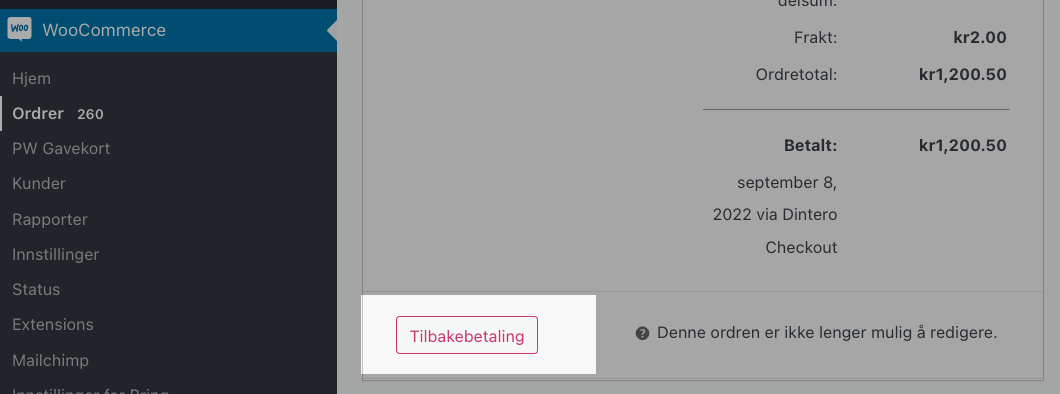 For each product line to refund, set the **Qty** field. The refund total updates automatically. To refund a full line, set it to the full quantity ordered.
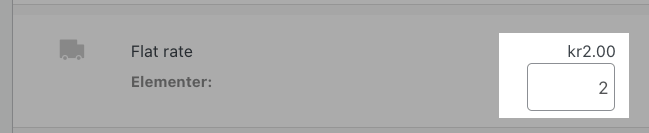
 To refund shipping costs, enter the amount in the shipping row.
 Click **Refund \[amount] through Dintero Checkout**. The button label shows the calculated amount. Dintero processes the refund and it will appear on the customer's account within 1–3 business days.
## Refund via Dintero Backoffice
Use this method if you cannot refund through the WooCommerce plugin. After refunding in Backoffice, you must manually update the order status in WooCommerce.
In [Dintero Backoffice](https://backoffice.dintero.com), go to **Payments** and locate the order.
Click **Refund \[amount] through Dintero Checkout**. The button label shows the calculated amount. Dintero processes the refund and it will appear on the customer's account within 1–3 business days.
## Refund via Dintero Backoffice
Use this method if you cannot refund through the WooCommerce plugin. After refunding in Backoffice, you must manually update the order status in WooCommerce.
In [Dintero Backoffice](https://backoffice.dintero.com), go to **Payments** and locate the order.
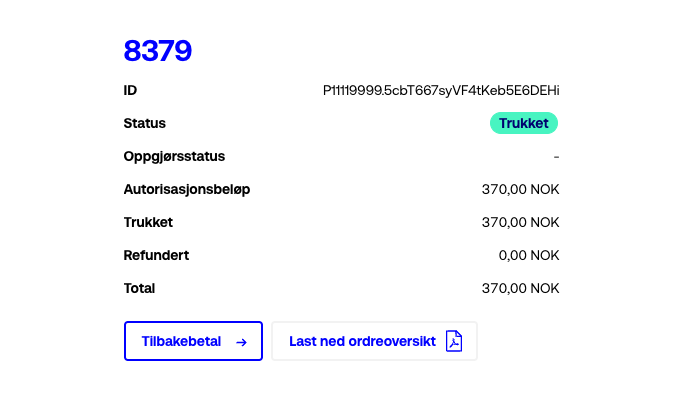 Open the order and click **Pay back**.
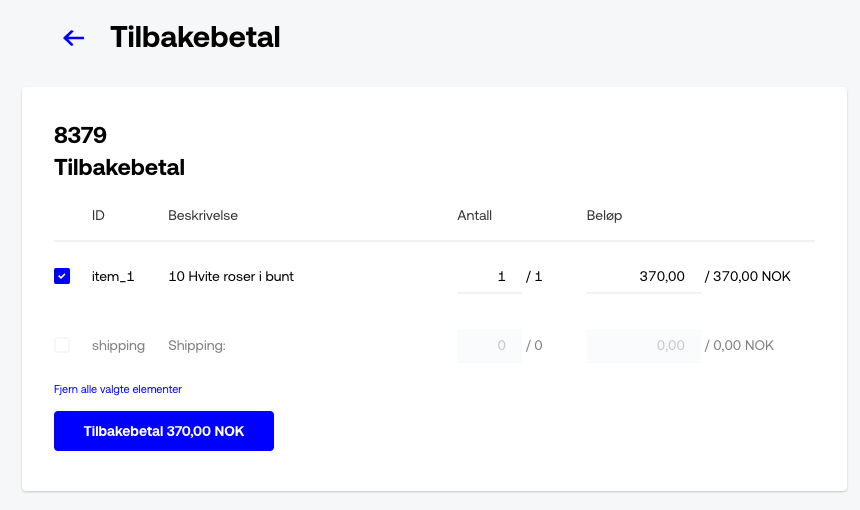 Mark the lines to refund, verify the total, and confirm.
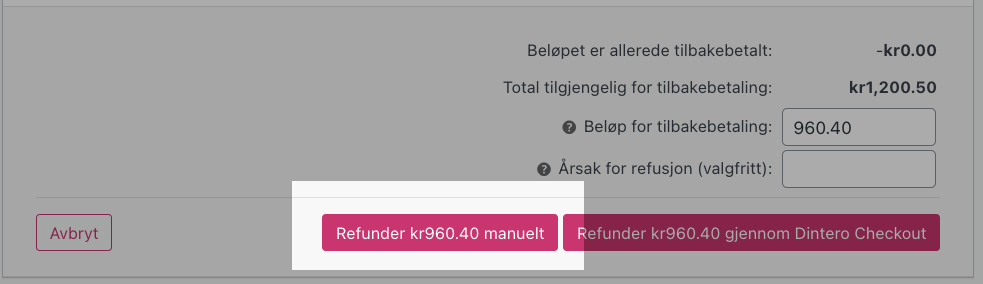 Return to WooCommerce, open the order, and click **Refund \[amount] manually** to update the order status.