> ## Documentation Index
> Fetch the complete documentation index at: https://docs.dintero.com/llms.txt
> Use this file to discover all available pages before exploring further.
# Report setup for sellers (marketplaces)
> How marketplace operators can configure automatic payout report forwarding to individual sellers and their accountants.
If you operate a marketplace, you can configure Dintero to automatically forward payout reports to each seller and their accountants by email.
This applies to future reports only. Reports already generated cannot be forwarded retroactively.
For a standard single-merchant setup, see [Reports for Dintero Checkout](/docs/integrations/support/reports-overview) instead.
## Set up report forwarding for a seller
In [Dintero Backoffice](https://backoffice.dintero.com), go to **Settings** > **Payout report emails**.
Click **Create report email subscription**.
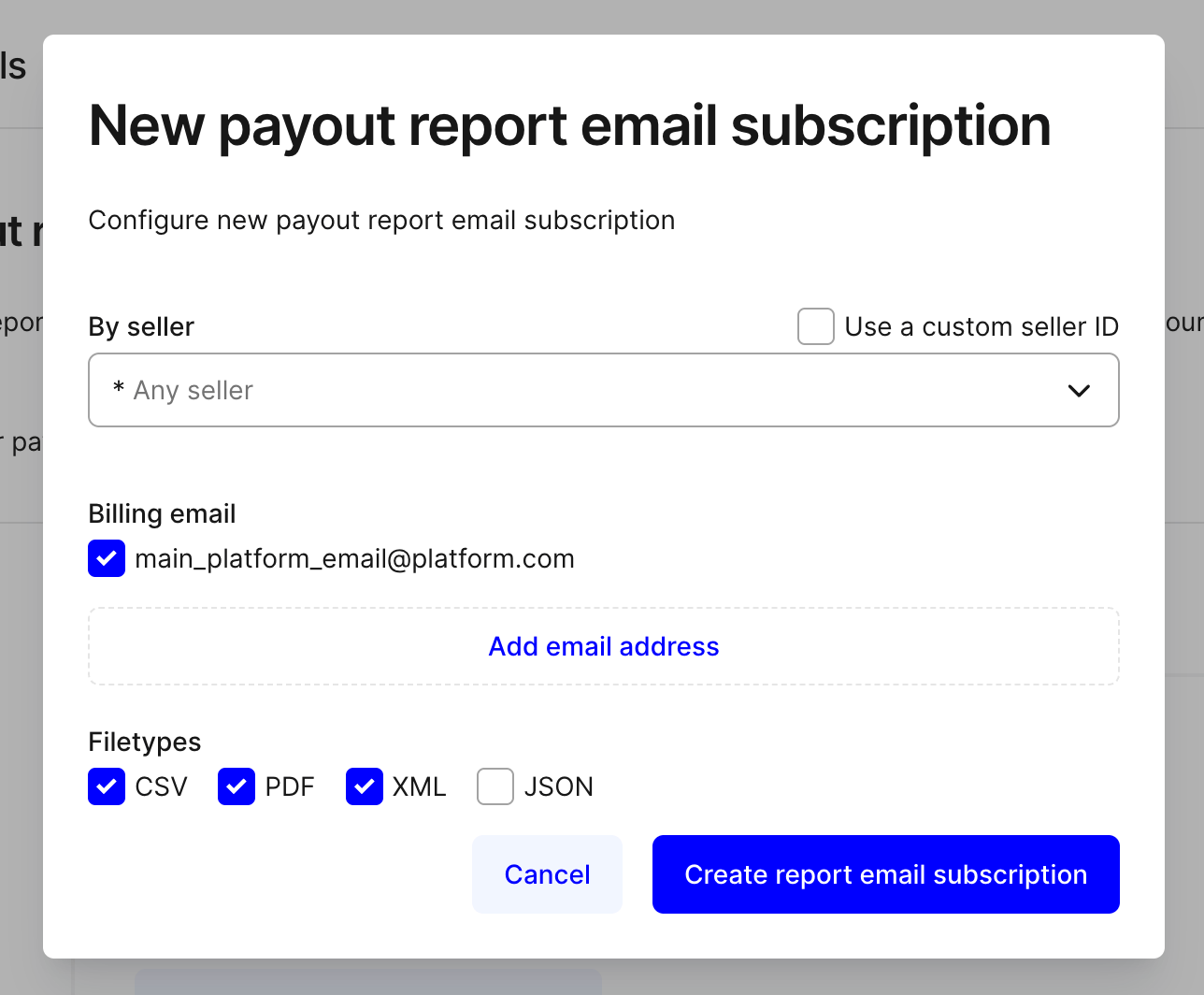 Choose the seller ID from the dropdown. This list contains all sellers connected to your marketplace account.
Enter one or more email addresses to receive the reports. Select the report formats you want to send (for example, PDF, CSV, or both).
Click **Create** in the confirmation popup to activate the subscription.
Repeat for each seller that needs report forwarding.
Choose the seller ID from the dropdown. This list contains all sellers connected to your marketplace account.
Enter one or more email addresses to receive the reports. Select the report formats you want to send (for example, PDF, CSV, or both).
Click **Create** in the confirmation popup to activate the subscription.
Repeat for each seller that needs report forwarding.