> ## Documentation Index
> Fetch the complete documentation index at: https://docs.dintero.com/llms.txt
> Use this file to discover all available pages before exploring further.
# Reports for Dintero Checkout
> Overview of payout reports, periodic reports, and how to connect them to your accounting system.
Dintero provides two types of reports: **payout reports** and **periodic reports**. Both are available in [Dintero Backoffice](https://backoffice.dintero.com).
## Payout reports
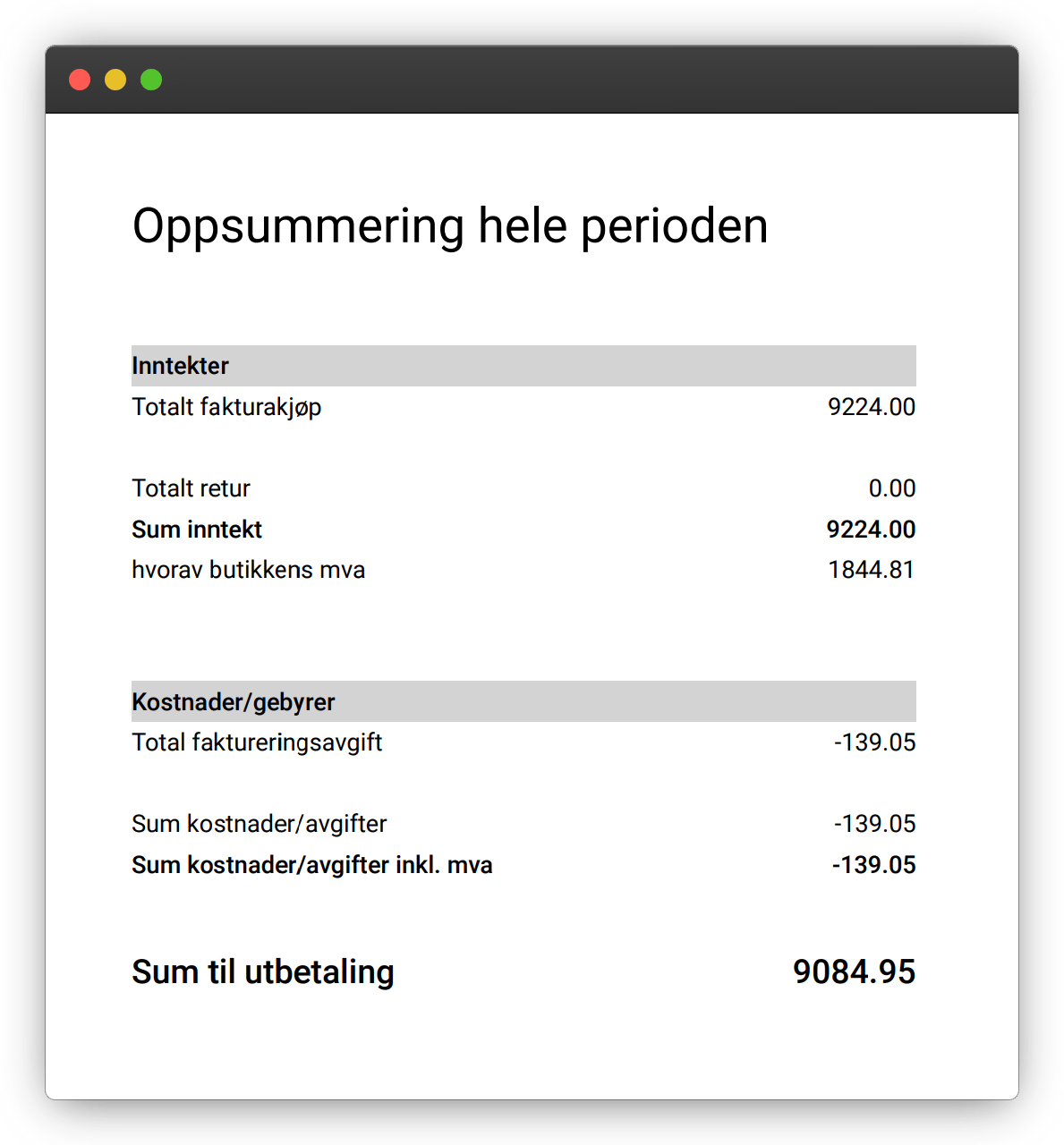
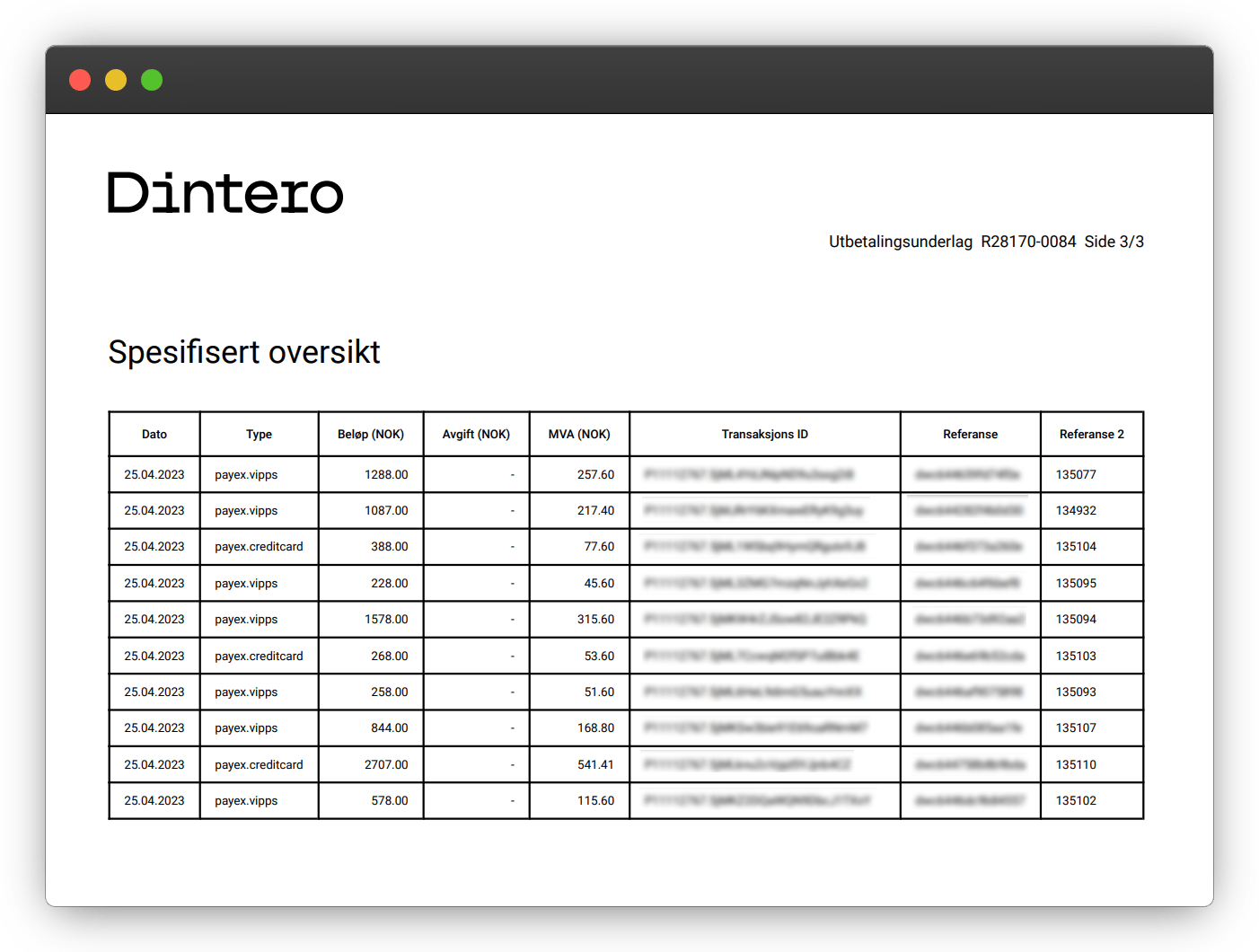
A payout report is generated for each transfer Dintero sends to your bank account. It shows:
* Gross amount for the payout period
* Transaction fees deducted
* Net amount transferred
* Each individual transaction included
Returns on previously paid orders appear as negative amounts. Only captured transactions within the payout period are included.
 ## Periodic reports
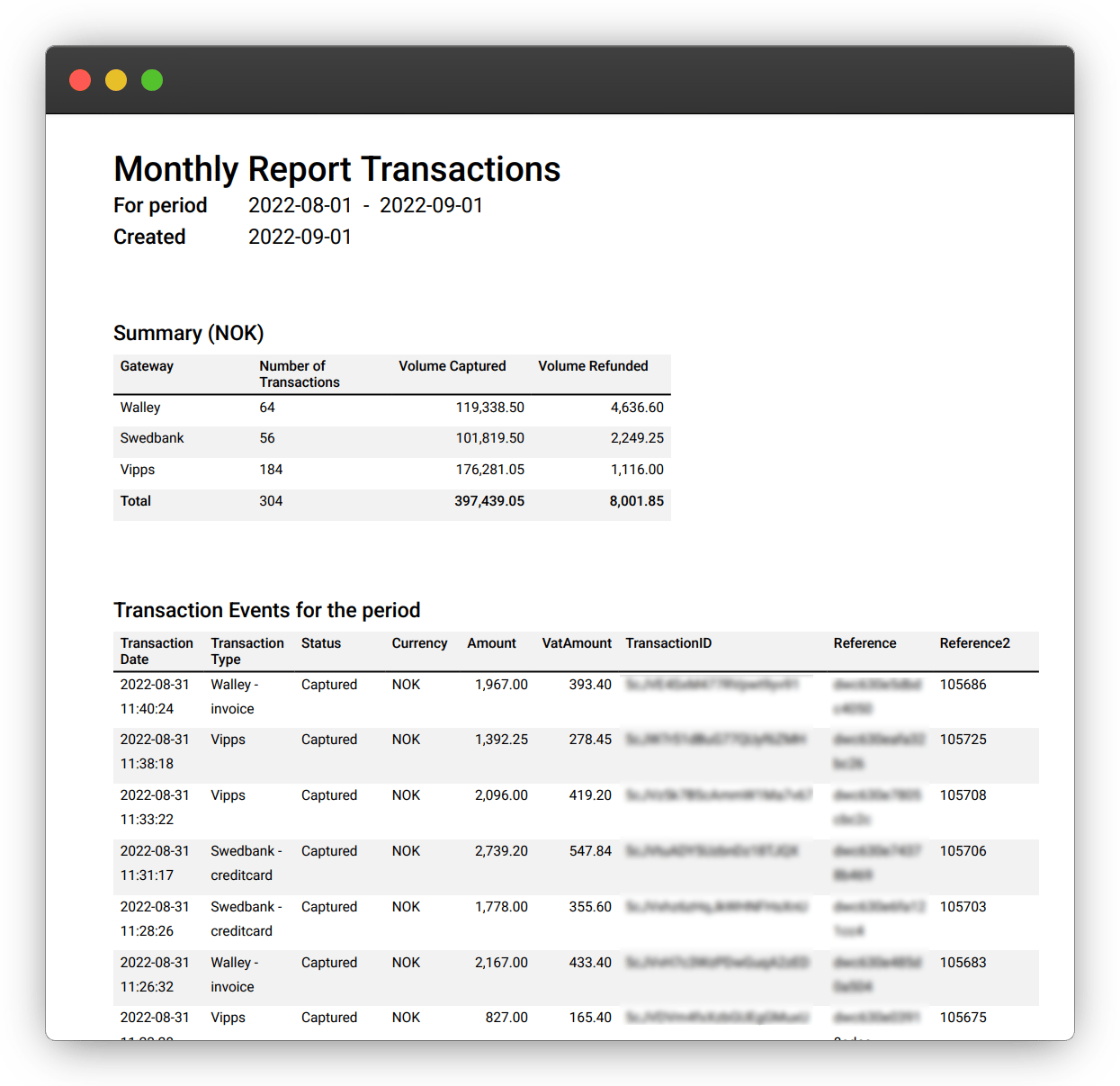
Periodic reports show all transactions completed during a chosen period, independent of when they were paid out. Monthly reports are configured automatically — find them in Backoffice under **Reports** > **Reports**.
## Periodic reports
Periodic reports show all transactions completed during a chosen period, independent of when they were paid out. Monthly reports are configured automatically — find them in Backoffice under **Reports** > **Reports**.
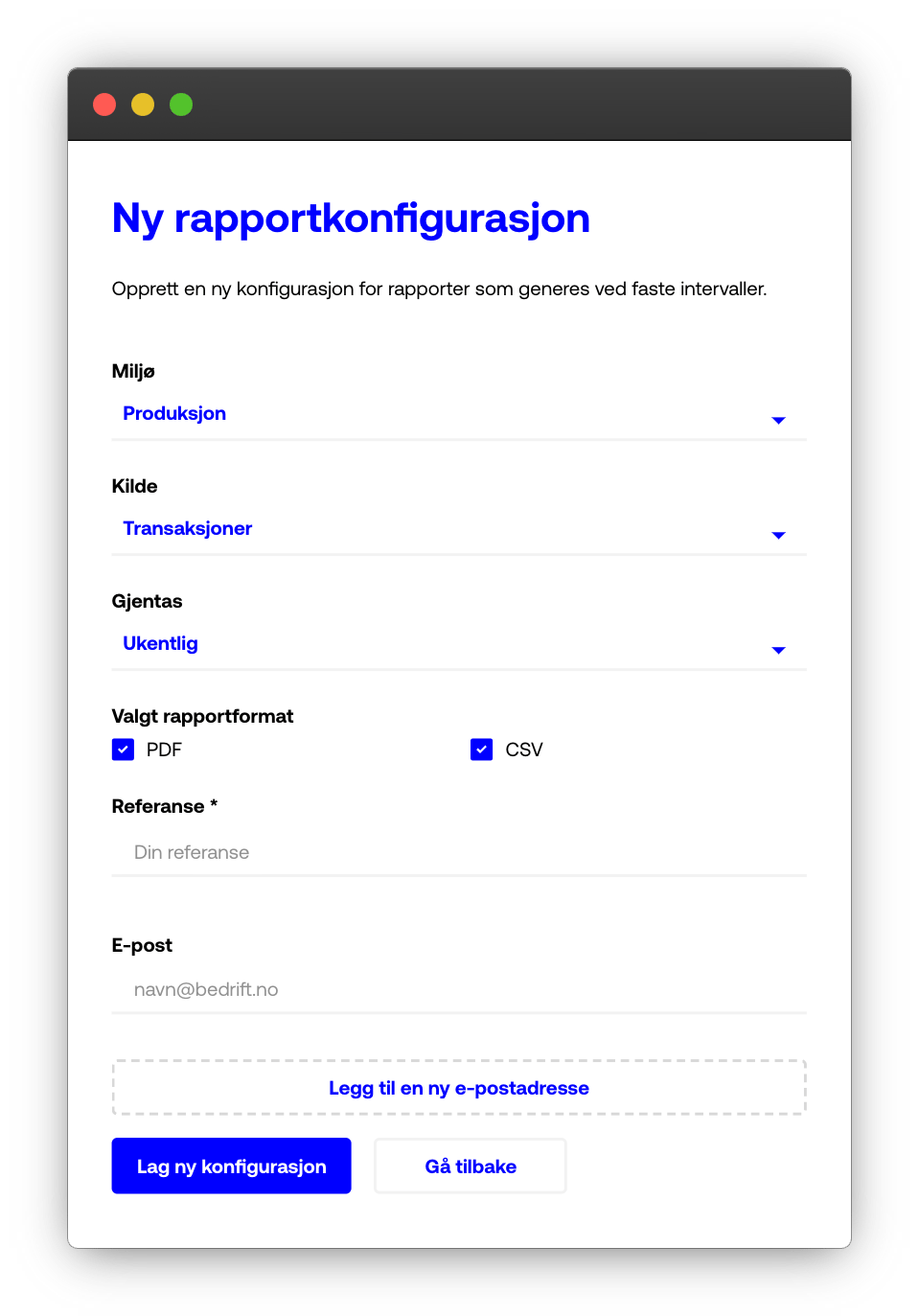 To customize the schedule or format, go to **Settings** > **Report settings**:
| Setting | Options |
| ----------- | --------------------------------- |
| Period | Daily, weekly, or monthly |
| Source | Transactions or open transactions |
| Environment | Test or production |
## Connect to your accounting system
You can have Dintero send payout reports automatically to your accounting software by email.
In your accounting software, locate the unique email address for importing documents. This is specific to each application.
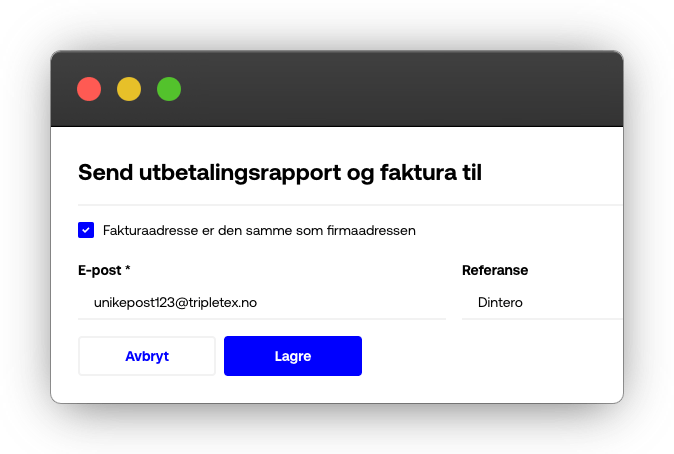
In [Dintero Backoffice](https://backoffice.dintero.com), go to **Settings** > **Account info** and click **Edit account**. Scroll to **Send payment report and invoice to** and enter the email address.
To customize the schedule or format, go to **Settings** > **Report settings**:
| Setting | Options |
| ----------- | --------------------------------- |
| Period | Daily, weekly, or monthly |
| Source | Transactions or open transactions |
| Environment | Test or production |
## Connect to your accounting system
You can have Dintero send payout reports automatically to your accounting software by email.
In your accounting software, locate the unique email address for importing documents. This is specific to each application.
In [Dintero Backoffice](https://backoffice.dintero.com), go to **Settings** > **Account info** and click **Edit account**. Scroll to **Send payment report and invoice to** and enter the email address.
 For direct integrations with **PowerOffice Go**, **Tripletex**, **24SevenOffice**, and **Xledger**, use [eMonkey](https://www.emonkey.no/).
If you operate a marketplace and need to forward reports to individual sellers, see [Report setup for sellers](/docs/integrations/support/report-setup-sellers).
For direct integrations with **PowerOffice Go**, **Tripletex**, **24SevenOffice**, and **Xledger**, use [eMonkey](https://www.emonkey.no/).
If you operate a marketplace and need to forward reports to individual sellers, see [Report setup for sellers](/docs/integrations/support/report-setup-sellers).