> ## Documentation Index
> Fetch the complete documentation index at: https://docs.dintero.com/llms.txt
> Use this file to discover all available pages before exploring further.
# Send a payment link
> Send a payment link to a customer directly from Dintero Backoffice, without requiring them to visit your online store.
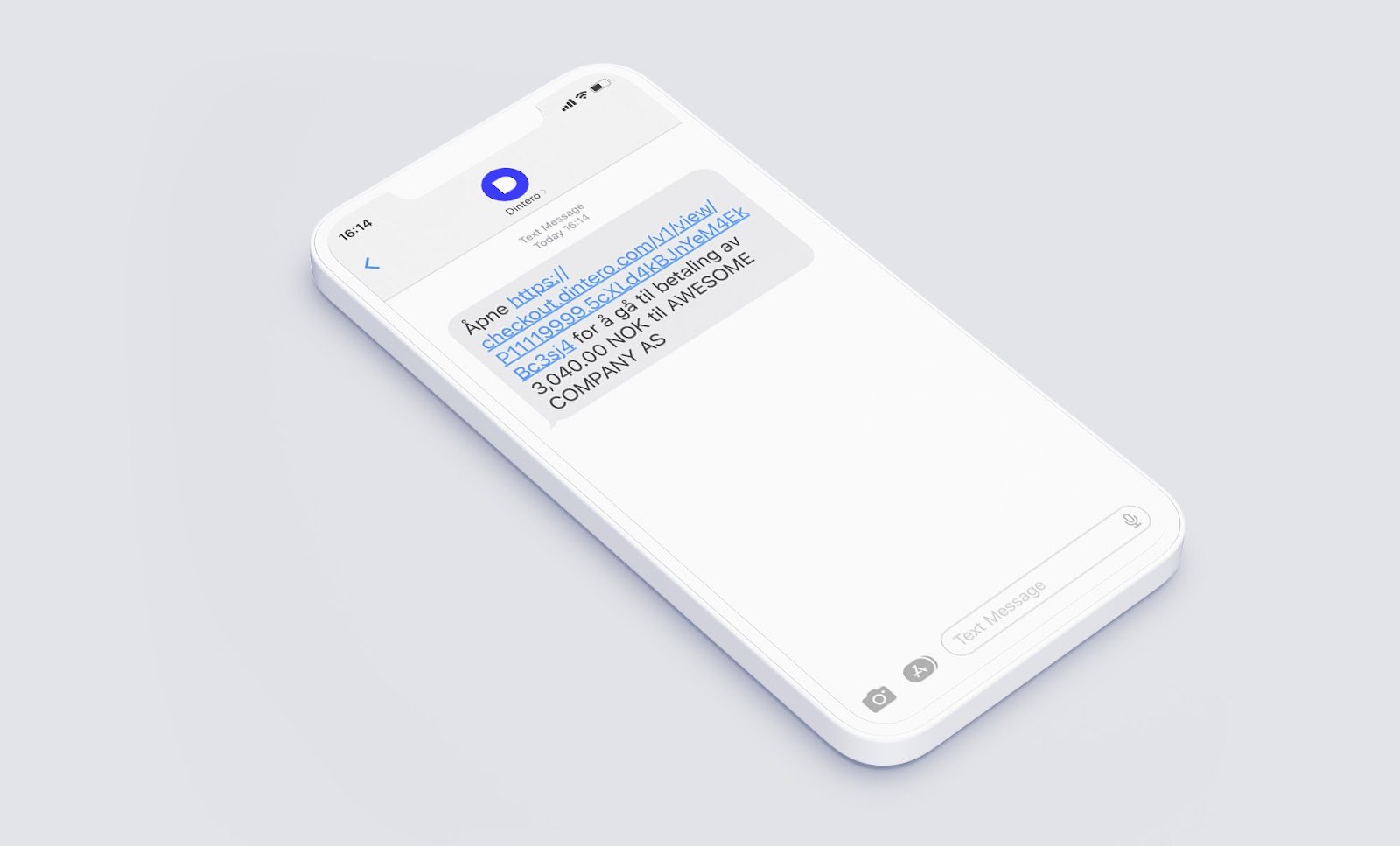
A payment link lets you request payment from a customer outside of your online store. You create the link in Backoffice and send it by SMS, email, or a copied URL.
## When to use
* Physical or door-to-door sales without a webshop
* Taking payment over the phone
* Reissuing payment for a cancelled or refunded order
* Recovering a failed checkout
## Send a payment link
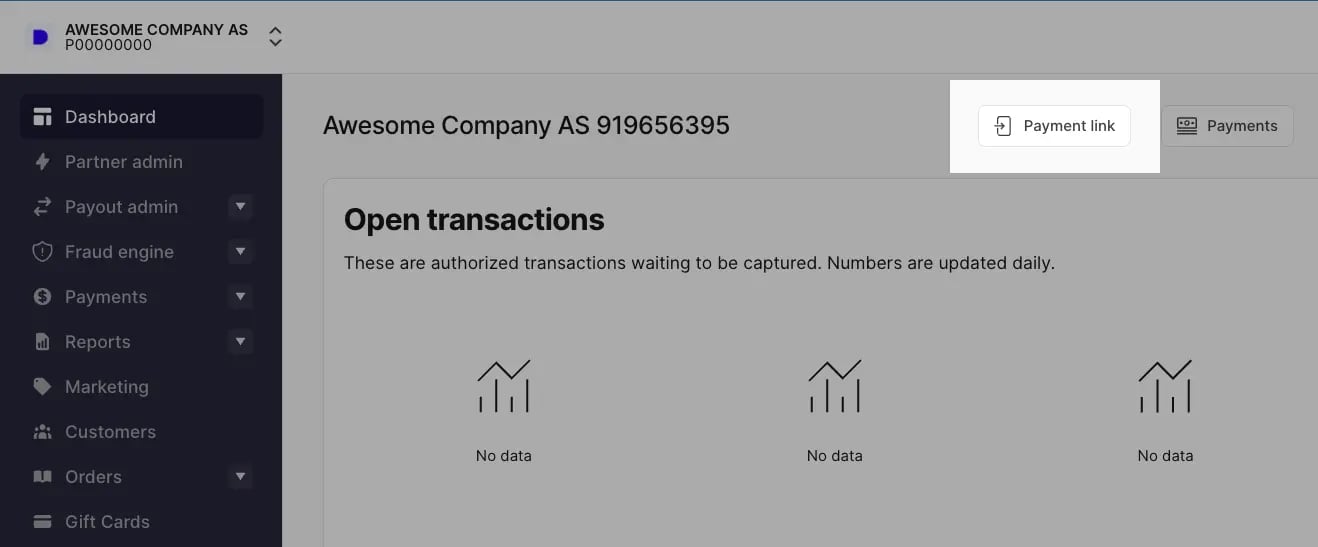
In [Dintero Backoffice](https://backoffice.dintero.com), go to the **Dashboard** or **Payments** view and select **Payment link**.
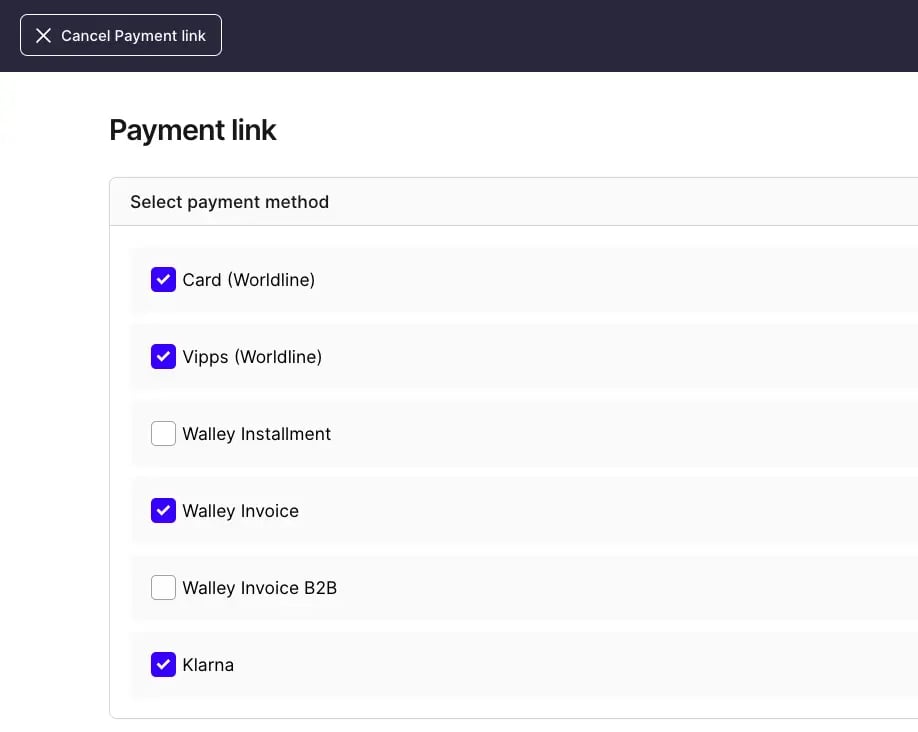
 Select which payment methods to offer the customer. You can offer all available methods or restrict to specific ones.
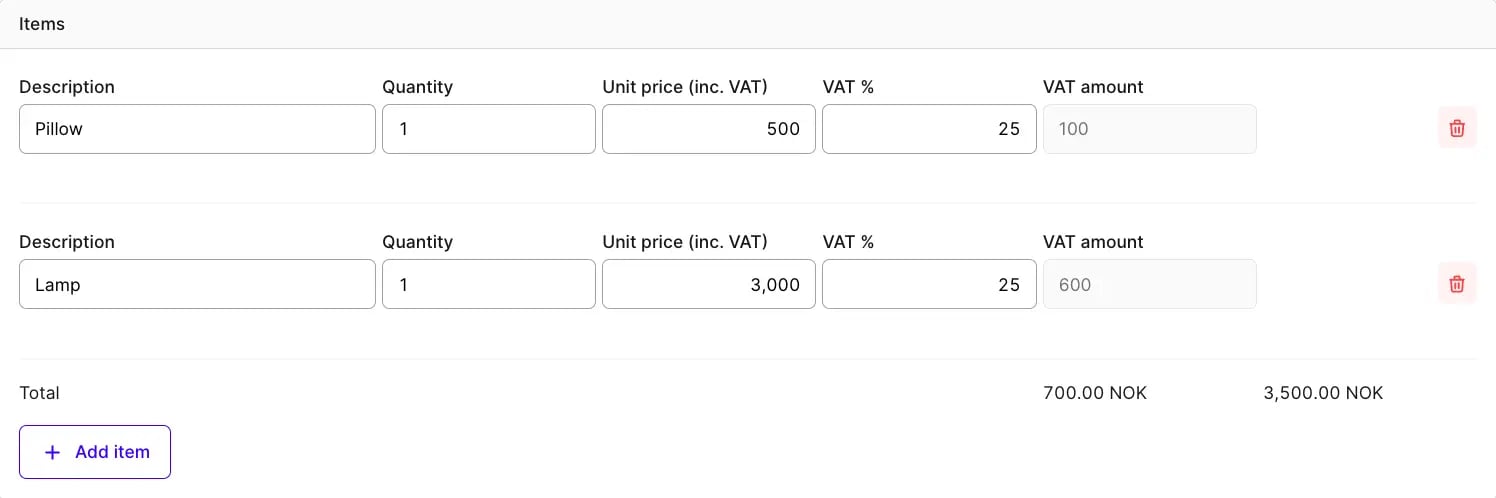
 Add items with a description, quantity, and unit price. VAT defaults to 25% but you can adjust it per item. Prices cannot be zero. Use the trash icon to remove an item.
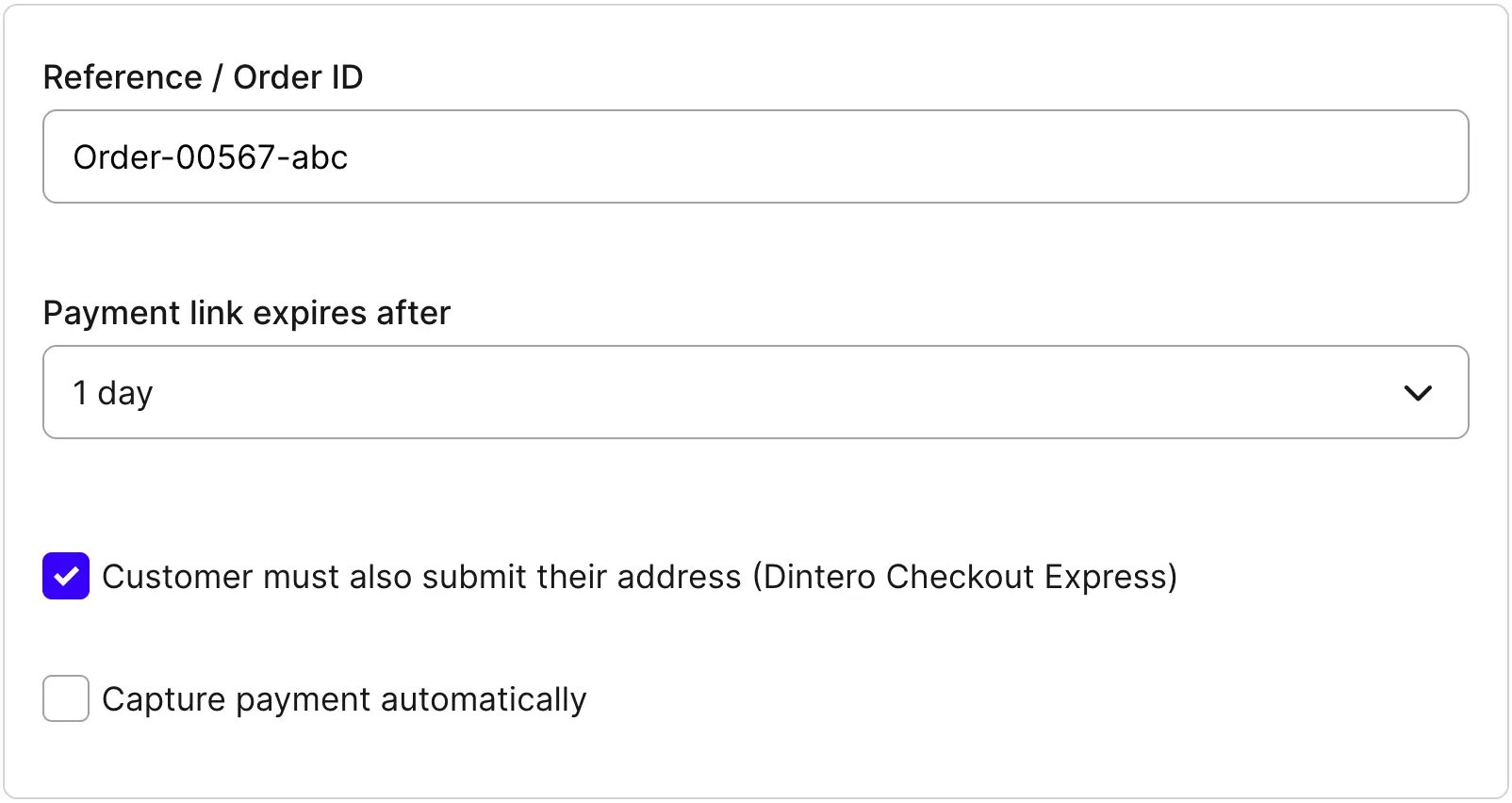
 Set a reference or order number and choose a payment deadline: 1 day, 1 week, or 1 month.
Decide whether to collect the customer's address, and whether to capture payment automatically when the customer pays or to authorize first and capture manually later.
Set a reference or order number and choose a payment deadline: 1 day, 1 week, or 1 month.
Decide whether to collect the customer's address, and whether to capture payment automatically when the customer pays or to authorize first and capture manually later.
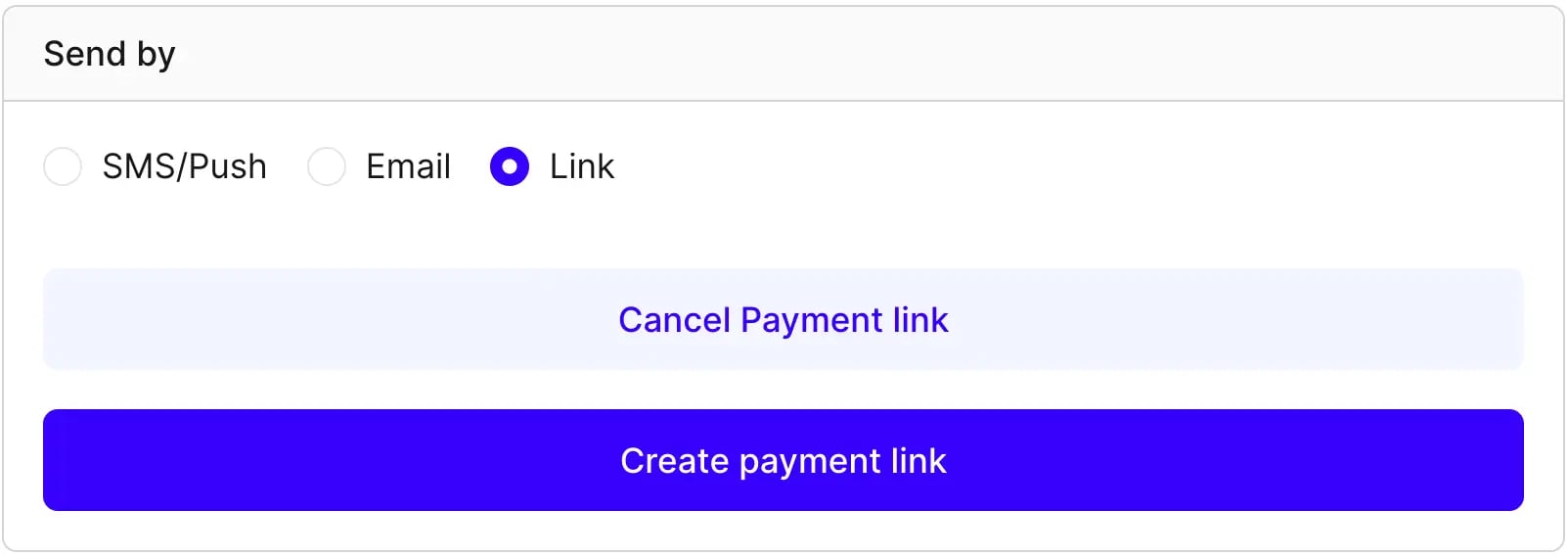
 Choose a delivery method:
| Method | How it works |
| -------- | ------------------------------------------------------------------------------------------- |
| SMS/Push | Sends an SMS. If Vipps is the only payment method, sends a Vipps push notification instead. |
| Email | Opens your default email client with the payment link pre-filled. |
| Link | Generates a URL you can copy and share however you like. |
Choose a delivery method:
| Method | How it works |
| -------- | ------------------------------------------------------------------------------------------- |
| SMS/Push | Sends an SMS. If Vipps is the only payment method, sends a Vipps push notification instead. |
| Email | Opens your default email client with the payment link pre-filled. |
| Link | Generates a URL you can copy and share however you like. |
 ## Track payment status
After sending, you can follow the payment in real time. Backoffice shows when the customer opens the link and when payment is completed.
Go to the **Payments** view in [Dintero Backoffice](https://backoffice.dintero.com) to check status.
## Track payment status
After sending, you can follow the payment in real time. Backoffice shows when the customer opens the link and when payment is completed.
Go to the **Payments** view in [Dintero Backoffice](https://backoffice.dintero.com) to check status.