> ## Documentation Index
> Fetch the complete documentation index at: https://docs.dintero.com/llms.txt
> Use this file to discover all available pages before exploring further.
# WooCommerce
> Install the Dintero Checkout WordPress plugin for WooCommerce stores.
WooCommerce is a popular open-source e-commerce plugin for WordPress. Dintero offers a checkout plugin for WooCommerce stores.
## Prerequisites
* A WordPress site with WooCommerce installed.
* A Dintero account. See [API client setup](/docs/checkout/checkout-client) to create your API keys.
## Installation
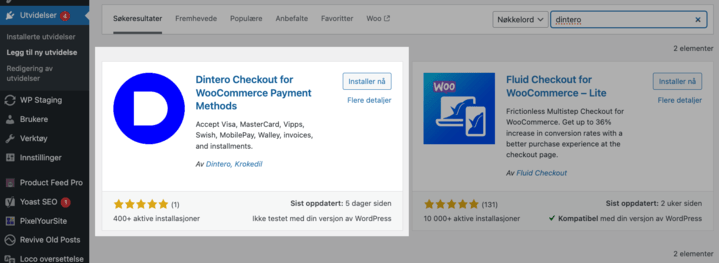
In your WordPress admin, go to **Plugins** > **Add new**, search for **Dintero**, then click **Install Now** and **Activate**.
 1. Go to **WooCommerce** > **Settings** > **Payments**.
2. Click **Enable** on the Dintero plugin, then click **Manage**.
3. Open [Dintero Backoffice](https://backoffice.dintero.com) in another tab and create your [API client](/docs/checkout/checkout-client).
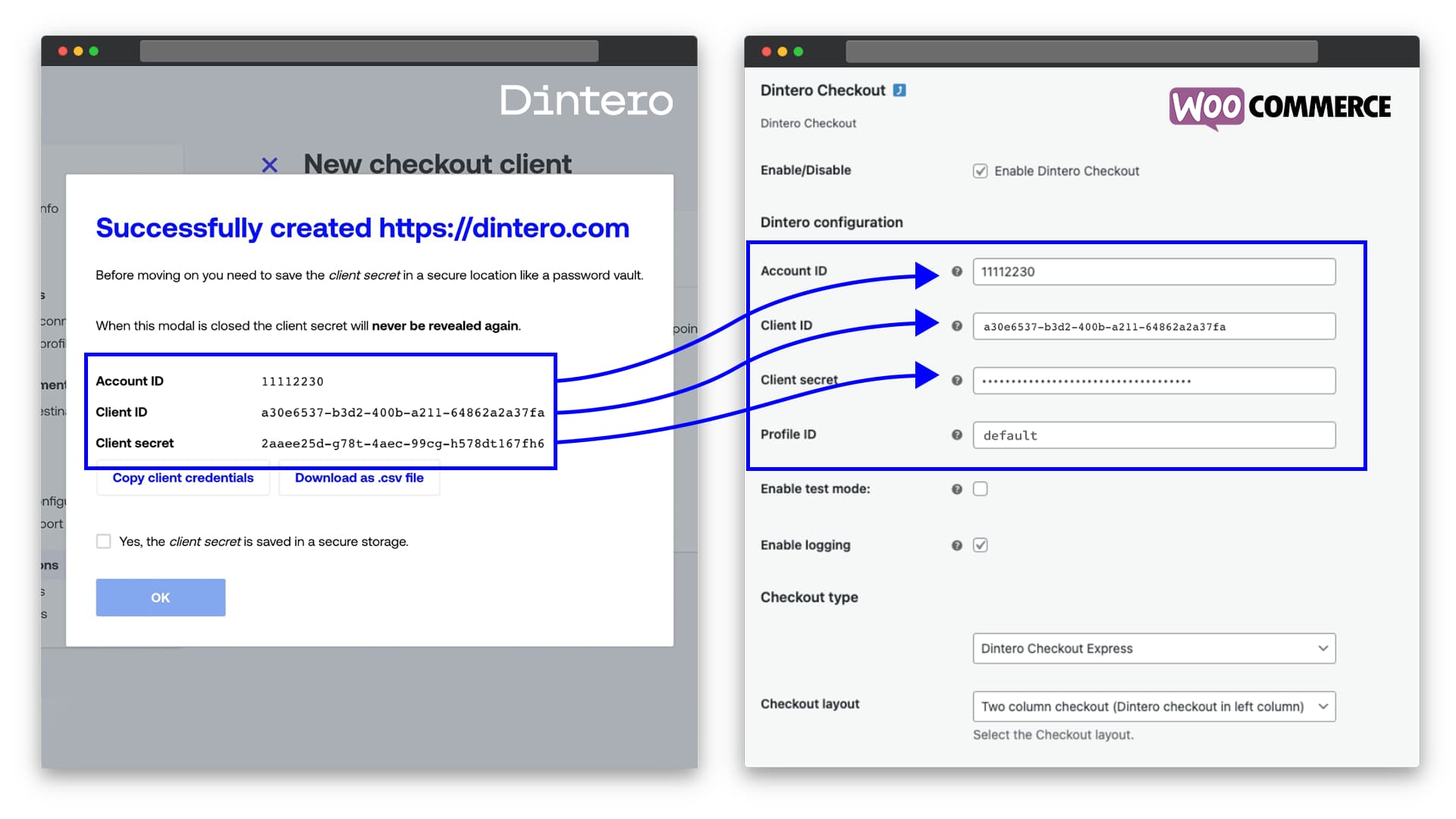
4. Paste the API keys into their respective fields in the plugin settings.
1. Go to **WooCommerce** > **Settings** > **Payments**.
2. Click **Enable** on the Dintero plugin, then click **Manage**.
3. Open [Dintero Backoffice](https://backoffice.dintero.com) in another tab and create your [API client](/docs/checkout/checkout-client).
4. Paste the API keys into their respective fields in the plugin settings.
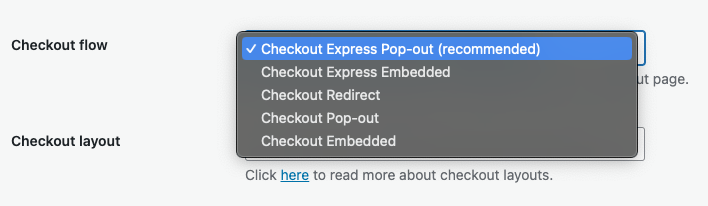
 In the plugin settings, select your preferred checkout flow. **Checkout Express Embedded** is the recommended option. If you use an embedded option, adjust the layout settings to match your theme.
[See the different checkout modes in action.](https://www.dintero.com/checkout-layouts)
In the plugin settings, select your preferred checkout flow. **Checkout Express Embedded** is the recommended option. If you use an embedded option, adjust the layout settings to match your theme.
[See the different checkout modes in action.](https://www.dintero.com/checkout-layouts)
 1. In WordPress, go to **WooCommerce** > **Settings** > **General** and set **Number of decimals** to `2`.
2. Turn off tax rounding: go to **WooCommerce** > **Settings** > **Tax** and make sure **Round tax at subtotal level** is off.
1. In WordPress, go to **WooCommerce** > **Settings** > **General** and set **Number of decimals** to `2`.
2. Turn off tax rounding: go to **WooCommerce** > **Settings** > **Tax** and make sure **Round tax at subtotal level** is off.
 ## Open firewall for Dintero traffic
If your server uses a firewall, allow inbound traffic from the following Dintero IP addresses:
* `34.241.230.119`
* `34.242.13.162`
See [Validating callbacks](/docs/checkout/validating-callbacks) for more information.
## Troubleshooting
### Orders stuck on hold
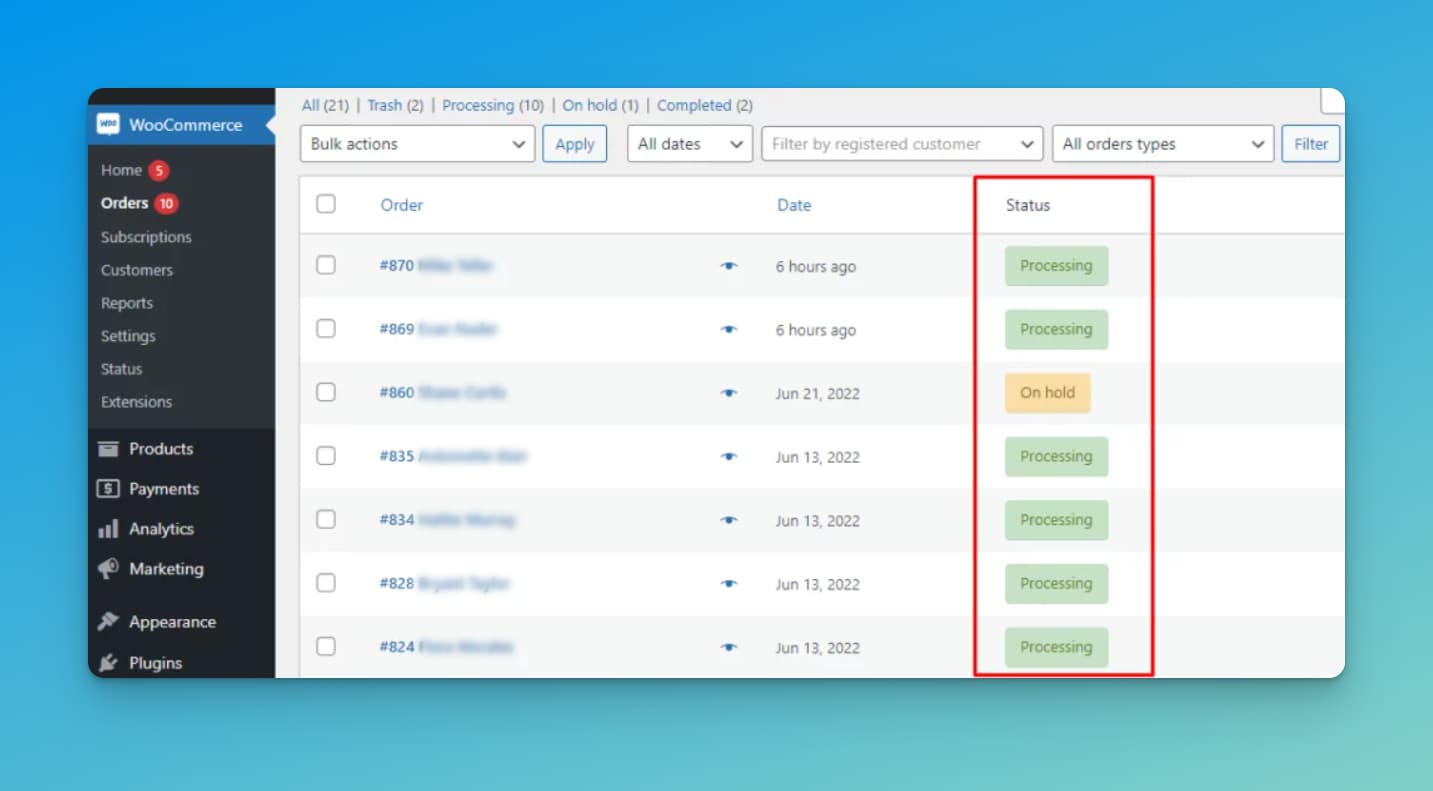
An order can get stuck on **On hold** if the order amount or items in WooCommerce differ from what Dintero received. To force the order to the correct status:
## Open firewall for Dintero traffic
If your server uses a firewall, allow inbound traffic from the following Dintero IP addresses:
* `34.241.230.119`
* `34.242.13.162`
See [Validating callbacks](/docs/checkout/validating-callbacks) for more information.
## Troubleshooting
### Orders stuck on hold
An order can get stuck on **On hold** if the order amount or items in WooCommerce differ from what Dintero received. To force the order to the correct status:
 Open one tab with your plugin overview at `[your-domain.com]/wp-admin/plugins.php` and one with the order in WooCommerce.
In the plugins tab, deactivate the Dintero plugin.
In the order tab, set the order to the desired status.
Return to the plugins tab and activate the Dintero plugin again.
Check the order in Dintero Backoffice after changing the status. The amount captured in Dintero is the amount you will receive, minus transaction fees.
### Reconnect an order number with a Dintero transaction ID
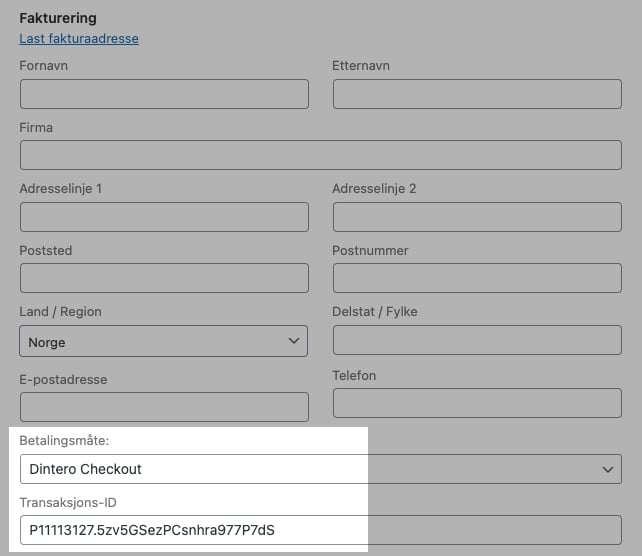
If an order has lost its link to its Dintero transaction, you can reconnect them manually:
1. Open the order in the WooCommerce order edit page.
2. Edit the **Billing address** section and set **Dintero Checkout** as the payment method.
3. Paste the Dintero transaction ID into the **Transaction ID** field.
Open one tab with your plugin overview at `[your-domain.com]/wp-admin/plugins.php` and one with the order in WooCommerce.
In the plugins tab, deactivate the Dintero plugin.
In the order tab, set the order to the desired status.
Return to the plugins tab and activate the Dintero plugin again.
Check the order in Dintero Backoffice after changing the status. The amount captured in Dintero is the amount you will receive, minus transaction fees.
### Reconnect an order number with a Dintero transaction ID
If an order has lost its link to its Dintero transaction, you can reconnect them manually:
1. Open the order in the WooCommerce order edit page.
2. Edit the **Billing address** section and set **Dintero Checkout** as the payment method.
3. Paste the Dintero transaction ID into the **Transaction ID** field.
 ## Advanced
### Apple Pay domain verification
When using an embedded checkout on your own domain, Apple requires you to verify domain ownership before Apple Pay can be displayed to customers.
See [Embedding the checkout on your own domain](/docs/checkout/apple-pay/apple-pay-hosted-checkout#embedding-the-checkout-on-your-own-domain) for the verification steps.
### Hide decimals in prices
The plugin requires **Number of decimals** set to `2` in WooCommerce (see step 4 of installation). If you want to display prices without decimals in your store, add the following filter to your theme's `functions.php`:
```php theme={null}
add_filter( 'woocommerce_price_trim_zeros', '__return_true' );
```
This trims trailing zeros from displayed prices without changing the underlying decimal precision that Dintero requires.
## Advanced
### Apple Pay domain verification
When using an embedded checkout on your own domain, Apple requires you to verify domain ownership before Apple Pay can be displayed to customers.
See [Embedding the checkout on your own domain](/docs/checkout/apple-pay/apple-pay-hosted-checkout#embedding-the-checkout-on-your-own-domain) for the verification steps.
### Hide decimals in prices
The plugin requires **Number of decimals** set to `2` in WooCommerce (see step 4 of installation). If you want to display prices without decimals in your store, add the following filter to your theme's `functions.php`:
```php theme={null}
add_filter( 'woocommerce_price_trim_zeros', '__return_true' );
```
This trims trailing zeros from displayed prices without changing the underlying decimal precision that Dintero requires.