

Prerequisites
- A WordPress site with WooCommerce installed.
- A Dintero account. See API client setup to create your API keys.
Installation
1
Install the plugin
In your WordPress admin, go to Plugins > Add new, search for Dintero, then click Install Now and Activate.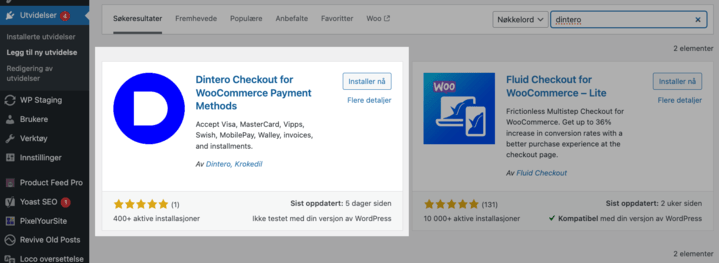
2
Connect your Dintero account
- Go to WooCommerce > Settings > Payments.
- Click Enable on the Dintero plugin, then click Manage.
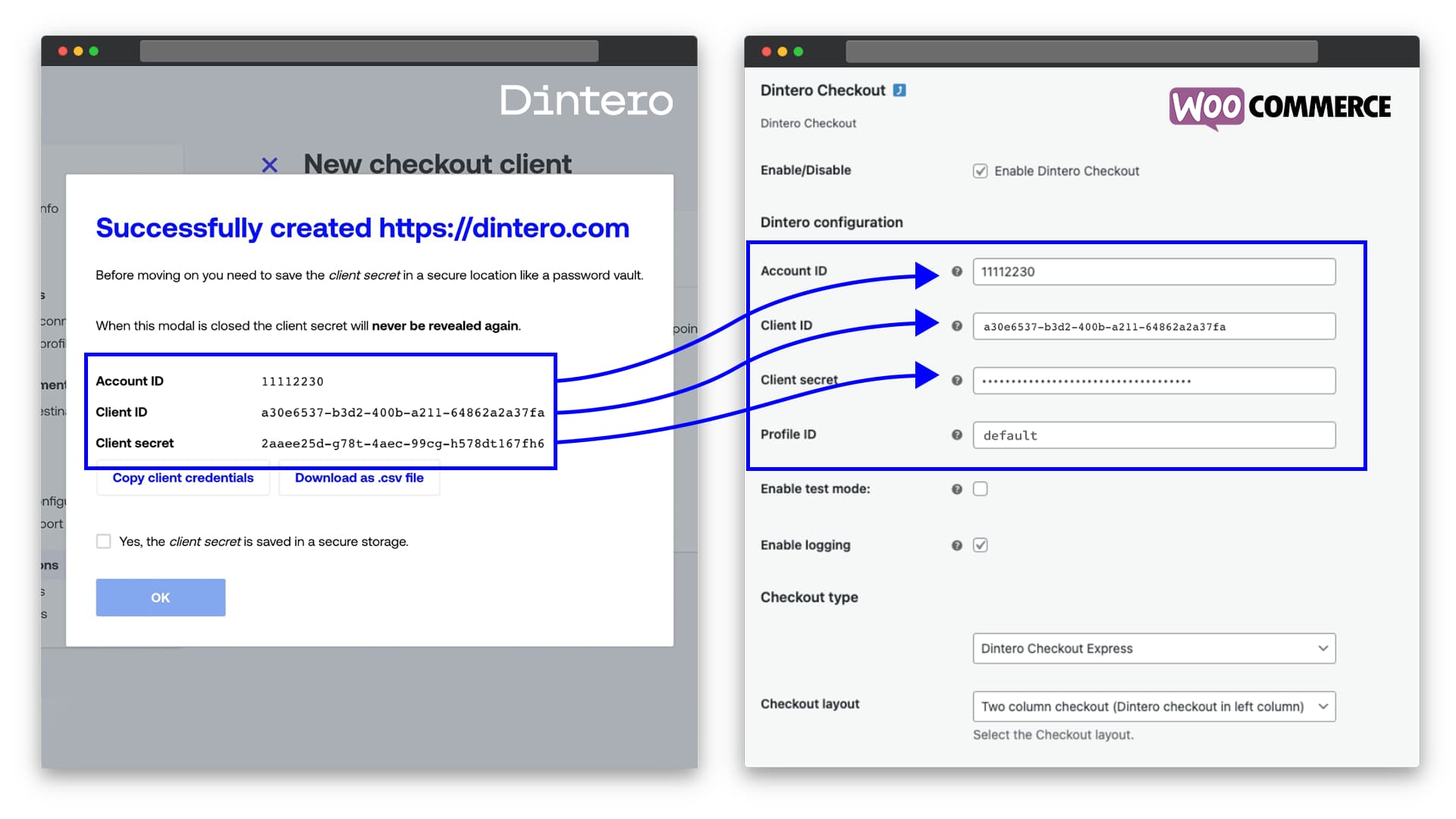
- Open Dintero Backoffice in another tab and create your API client.
- Paste the API keys into their respective fields in the plugin settings.
3
Select a checkout flow
In the plugin settings, select your preferred checkout flow. Checkout Express Embedded is the recommended option. If you use an embedded option, adjust the layout settings to match your theme.See the different checkout modes in action.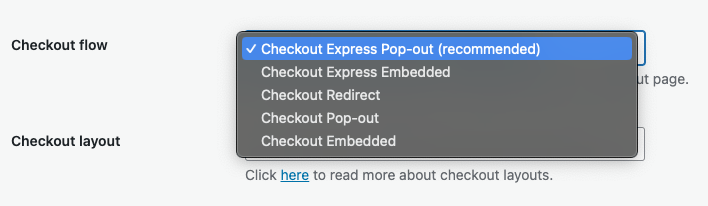
4
Configure WooCommerce settings
- In WordPress, go to WooCommerce > Settings > General and set Number of decimals to
2. - Turn off tax rounding: go to WooCommerce > Settings > Tax and make sure Round tax at subtotal level is off.

Open firewall for Dintero traffic
If your server uses a firewall, allow inbound traffic from the following Dintero IP addresses:34.241.230.11934.242.13.162
Troubleshooting
Orders stuck on hold
An order can get stuck on On hold if the order amount or items in WooCommerce differ from what Dintero received. To force the order to the correct status: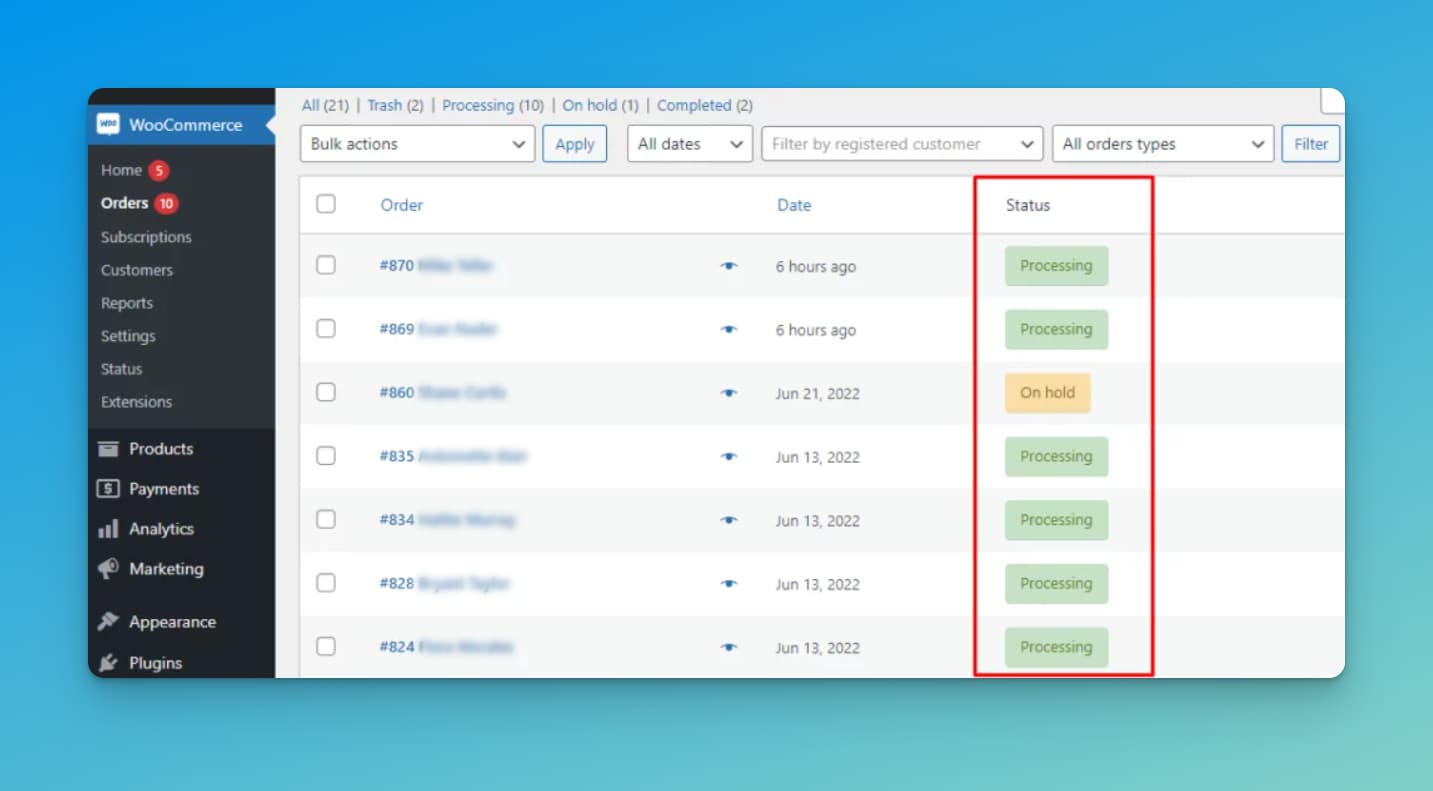
1
Open two tabs
Open one tab with your plugin overview at
[your-domain.com]/wp-admin/plugins.php and one with the order in WooCommerce.2
Disable the Dintero plugin
In the plugins tab, deactivate the Dintero plugin.
3
Update the order status
In the order tab, set the order to the desired status.
4
Re-enable the plugin
Return to the plugins tab and activate the Dintero plugin again.
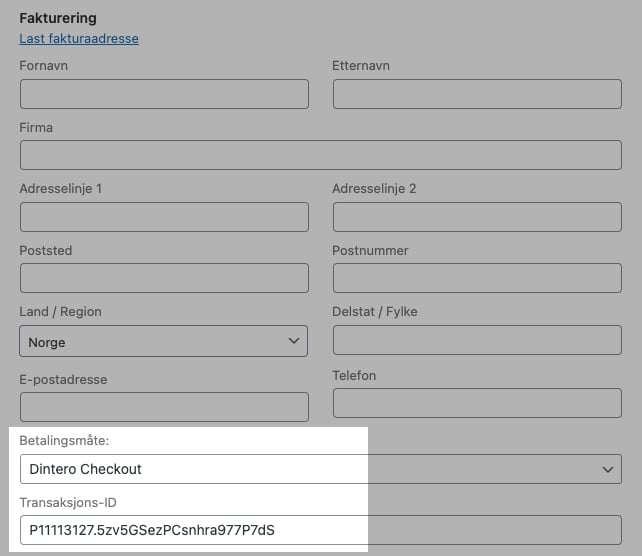
Reconnect an order number with a Dintero transaction ID
If an order has lost its link to its Dintero transaction, you can reconnect them manually:- Open the order in the WooCommerce order edit page.
- Edit the Billing address section and set Dintero Checkout as the payment method.
- Paste the Dintero transaction ID into the Transaction ID field.
Advanced
Apple Pay domain verification
When using an embedded checkout on your own domain, Apple requires you to verify domain ownership before Apple Pay can be displayed to customers. See Embedding the checkout on your own domain for the verification steps.Hide decimals in prices
The plugin requires Number of decimals set to2 in WooCommerce (see step 4 of installation). If you want to display prices without decimals in your store, add the following filter to your theme’s functions.php: