

Only captured orders can be refunded. If an order has status Processing in WooCommerce (authorized but not yet captured), cancel it instead of refunding. Cancelling before capture avoids the transaction fee; refunding after capture does not.
Refund in WooCommerce
1
Open the order
Go to WooCommerce > Orders, open the order, and click the Refund button at the bottom of the order.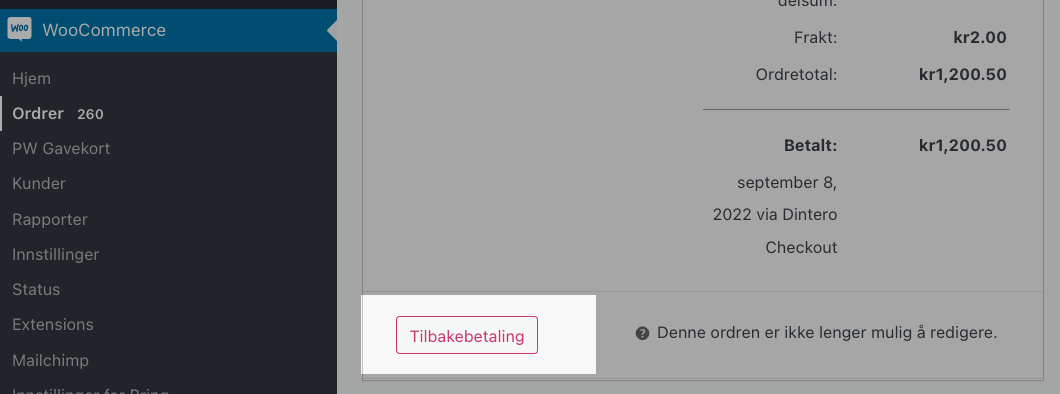
2
Enter the quantity to refund
For each product line to refund, set the Qty field. The refund total updates automatically. To refund a full line, set it to the full quantity ordered.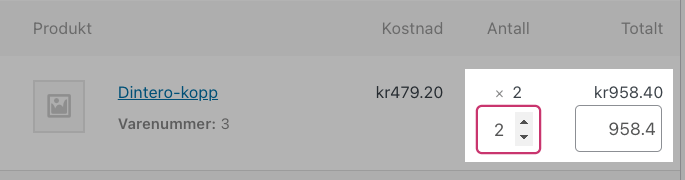
3
Refund shipping (optional)
To refund shipping costs, enter the amount in the shipping row.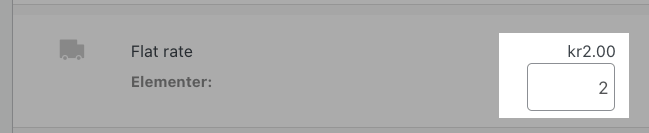
4
Submit the refund
Click Refund [amount] through Dintero Checkout. The button label shows the calculated amount. Dintero processes the refund and it will appear on the customer’s account within 1–3 business days.
Refund via Dintero Backoffice
Use this method if you cannot refund through the WooCommerce plugin. After refunding in Backoffice, you must manually update the order status in WooCommerce.1
Find the order
In Dintero Backoffice, go to Payments and locate the order.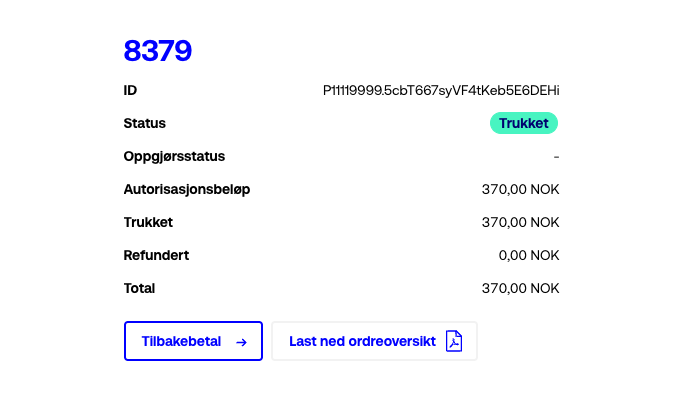
2
Click Pay back
Open the order and click Pay back.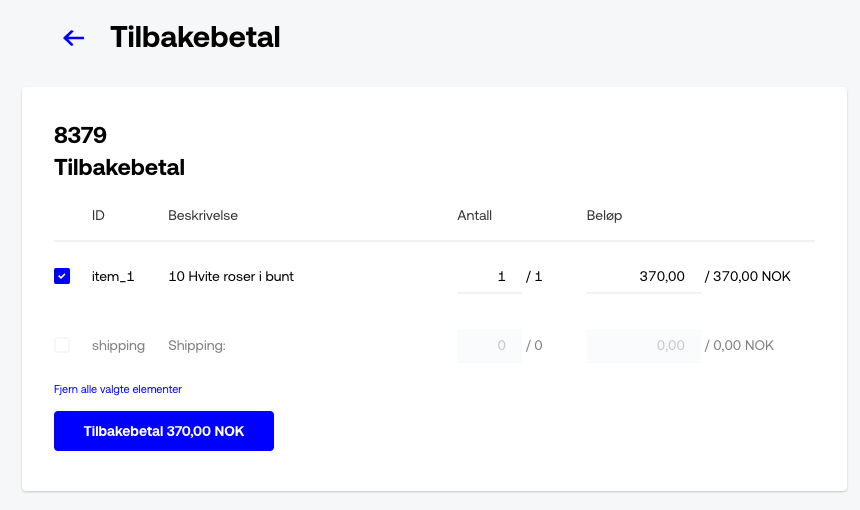
3
Select lines and confirm
Mark the lines to refund, verify the total, and confirm.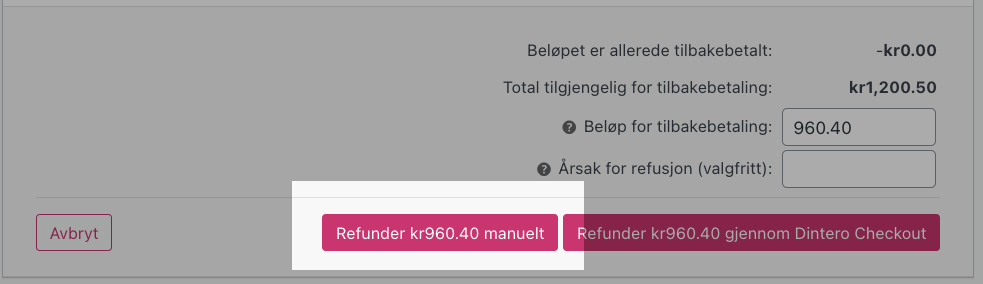
4
Sync the status in WooCommerce
Return to WooCommerce, open the order, and click Refund [amount] manually to update the order status.