

Full capture
In WooCommerce
Capture the full order by setting its status to Completed.1
Open the order
Go to WooCommerce > Orders and open the order. The status should be Processing or On hold, meaning the payment is authorized and ready to capture.
2
Set to Completed
Change the order status to Completed and save.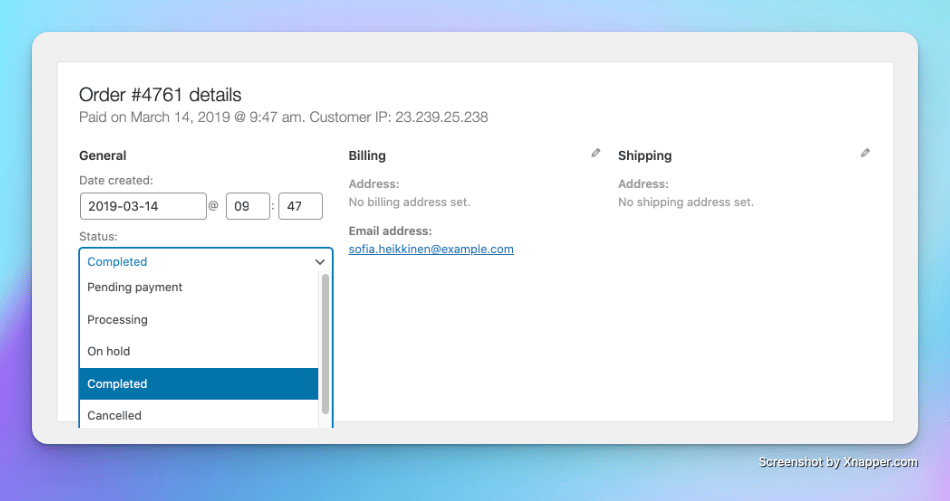
In Dintero Backoffice (backup)
Use this only if you cannot complete the order through WooCommerce. Update the WooCommerce order status manually afterward.1
Find the order
In Dintero Backoffice, go to Payments and search for the order number.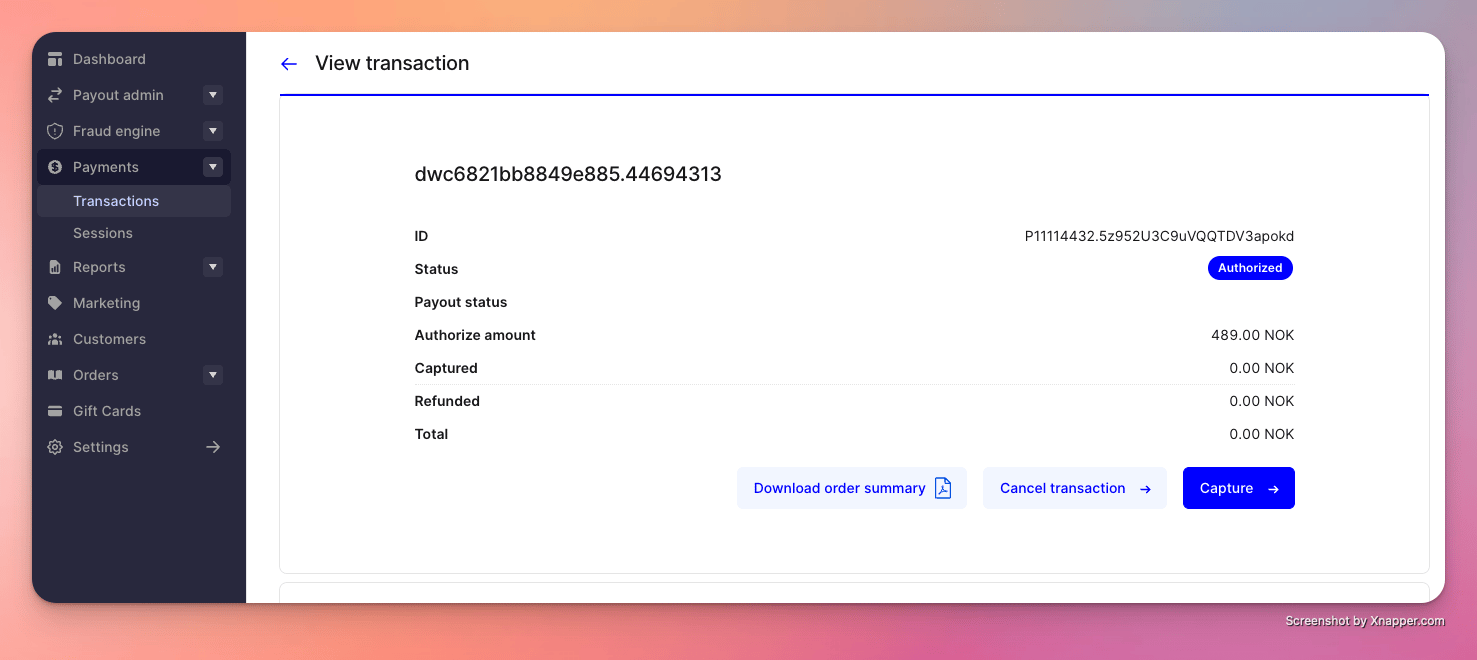
2
Capture the payment
Click Capture, verify the amount, and confirm.
3
Update WooCommerce
Open the order in WooCommerce and manually set the status to Completed.
Partial capture
Partial capture lets you charge the customer for part of an order now and capture the rest later. This is useful when items ship at different times. The order moves to statuspartially_captured after the first capture. The remaining authorized amount stays reserved at the customer’s bank. See Duration of authorizations for how long the reservation is held.
In WooCommerce
1
Set the order to Pending payment
Open the order and change the status to Pending payment. This pauses automatic processing.
2
Remove the items not shipping yet
Delete the product lines you are not capturing in this shipment. The order total updates to reflect only the remaining lines.
3
Set the order to Completed
Change the status to Completed and save. WooCommerce triggers a capture through Dintero for the remaining lines only.
Capture the remaining balance in Backoffice
When the rest of the order is ready to ship, capture the reserved amount.1
Find the order
In Dintero Backoffice, go to Payments and open the order.
2
Capture the remaining amount
Click Capture, select the product lines to charge, adjust amounts if needed, and confirm.
Cancel remaining balance
If you will not ship the rest of the order, release the reserved amount. It disappears automatically from the customer’s bank after a short period. To release it immediately:- In Backoffice, go to Payments and open the order.
- Click Cancel and confirm.