


- Visa: Visa CDET (Contactless Device Evaluation Toolkit), with several card profiles and edge cases.
- American Express: American Express Payment Test Emulator.
The emulator apps are intended for testing only. Use them against terminals that are configured for the sandbox environment, never against production terminals.
What you need
- An Android device with NFC.
- A Dintero payment terminal registered to a store in the sandbox. See terminal onboarding.
- The ability to change the phone’s default wallet / contactless payment app.
Visa
Install the Visa CDET app
Install Visa CDET Application from the Google Play Store:
Visa CDET on Google Play
com.visa.app.cdetSet CDET as the default wallet app
For the terminal to talk to CDET instead of Google Wallet (or any other wallet), you need to make CDET the default contactless payment app on the phone.1
Open the NFC / wallet settings
On your Android device, open Settings and search for Default wallet app (sometimes under Connected devices > NFC > Contactless payments). The exact path varies by manufacturer.
2
Select CDET
Choose CDET from the list of installed wallet apps.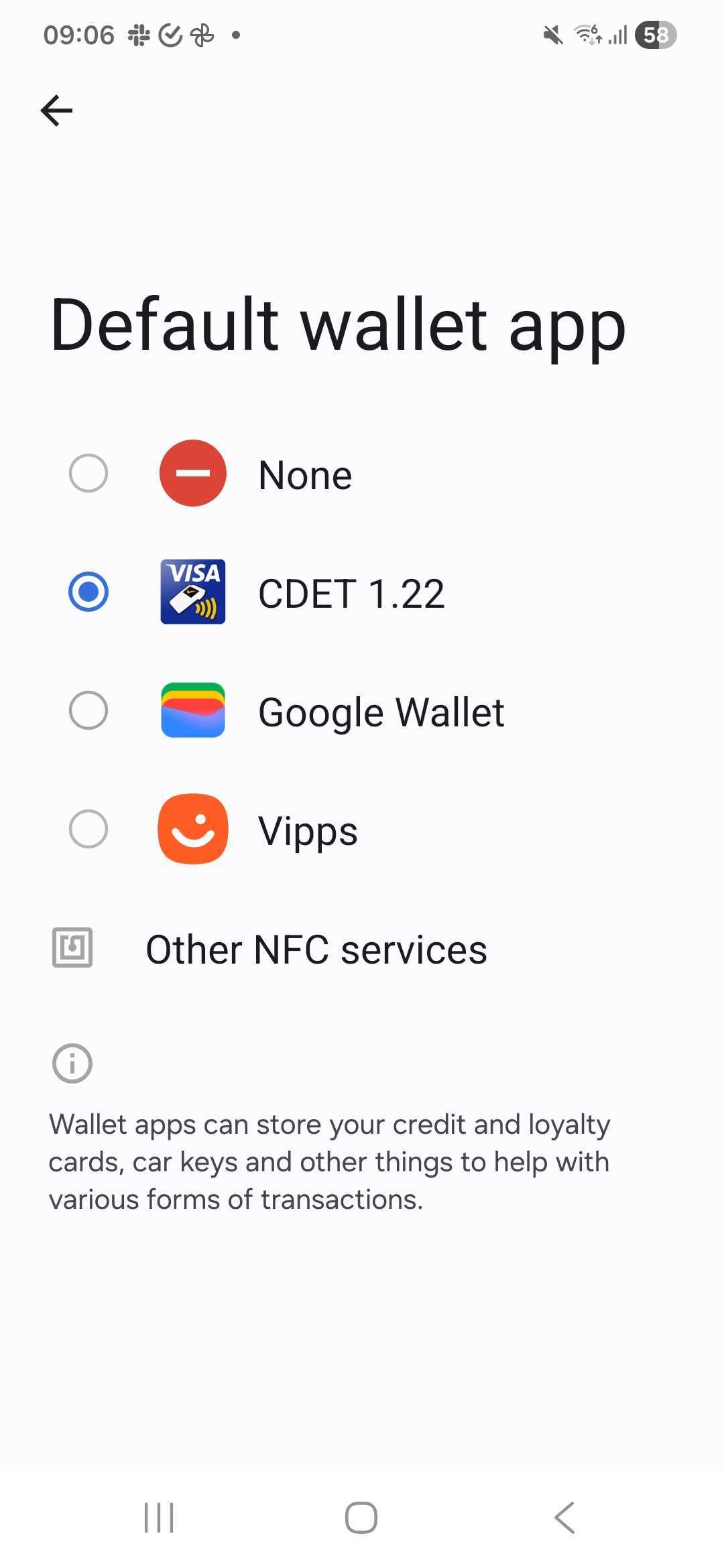
Test cards
Open the Visa CDET Application. You’ll see a list of test cards, each modeling a specific card profile or edge case (baseline Visa Contactless Payment Specification (VCPS) compliance, unusual Processing Options Data Object List (PDOL) requests, multi-application cards, missing cardholder name, and so on).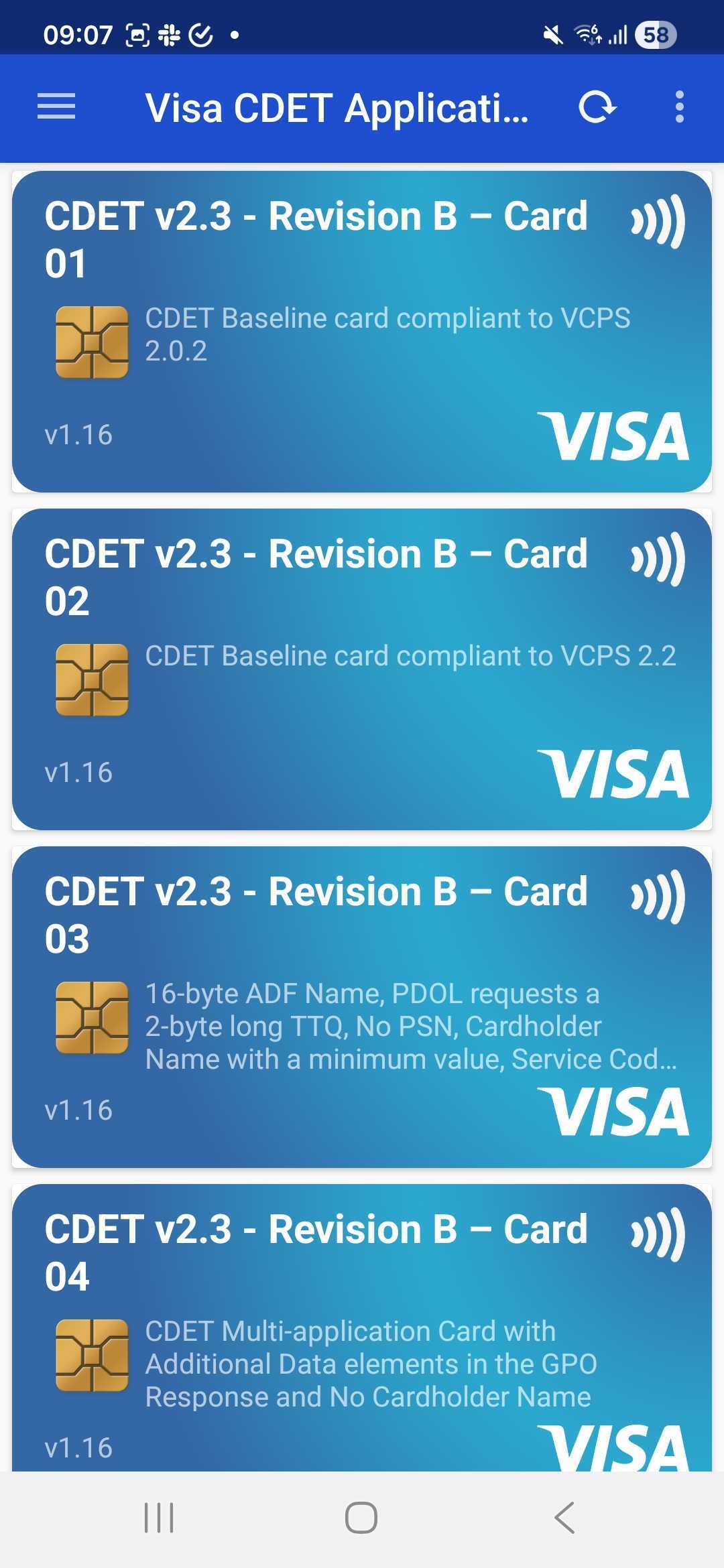
Refer to the card description shown in the app for the exact behavior of each entry. The list is maintained by Visa and updated with each CDET release.
American Express
American Express on terminals is only available to merchants with a direct agreement with American Express.
Install the American Express emulator
Install American Express Payment Test Emulator from the Google Play Store:American Express Payment Test Emulator on Google Play
com.americanexpress.android.testemulatorTest cards
1
Open contactless mode
Open the American Express Payment Test Emulator and tap Contactless.
2
Choose a test card
Select the card you want to test with.
3
Tap the phone against the terminal
Tap the phone against the terminal when it prompts for payment.
Run a sandbox payment
1
Create a terminal session
Create a session that targets your sandbox terminal. See creating a terminal session.
2
Tap the phone against the terminal
When the terminal prompts for payment, hold the phone against the terminal’s contactless zone. Select the desired test card first.
3
Observe the result
The terminal completes the flow as if a real card were tapped. The resulting transaction shows up in Backoffice and via the standard Checkout API, so you can verify authorization, capture, and callback handling end-to-end.
Related

Onboard a terminal
Register a store and link a terminal before you start testing.

Create a terminal session
Build the session payload that drives the terminal.